Run»
Every job that can touch your Spacelift-managed infrastructure is called a run. There are four main types of runs, and three of them are children of stacks:
- Task: A freeform command you can execute on your infrastructure.
- Proposed run: Serves as a preview of introduced changes.
- Tracked run: A form of deployment.
- Module test case: Executed on an OpenTofu/Terraform module, rather than in Spacelift. Similar to a tracked run.
Execution model»
Runs are executed on a worker node inside a Docker container. Spacelift maintains a number of these worker nodes (called the public worker pool) that are available to all customers, but individual customers are allowed to run our agent on their end, for their exclusive use.
Each Spacelift run involves a handover between spacelift.io and the worker node (the public or private worker pool). After the handover, the worker node is fully responsible for running the job and communicating the results of the job back to spacelift.io.
Info
Your worker node (public or private) executes the run and accesses your infrastrucutre, not spacelift.io.
Common run states»
Regardless of the type of the job performed, some phases and terminal states are common.
Queued»
Queued is a passive state, meaning no operations are performed. Queued runs are not ready for processing, either blocked, waiting for dependencies to finish, or requiring additional action from a user.
Spacelift serializes all state-changing operations to the stack. Both tracked runs and tasks can change the state, so each of them gets an exclusive lock on the stack, blocking other runs from starting.
If your run or task is currently blocked by another run holding a lock on the stack, you'll see a link to the blocker in the run state list:
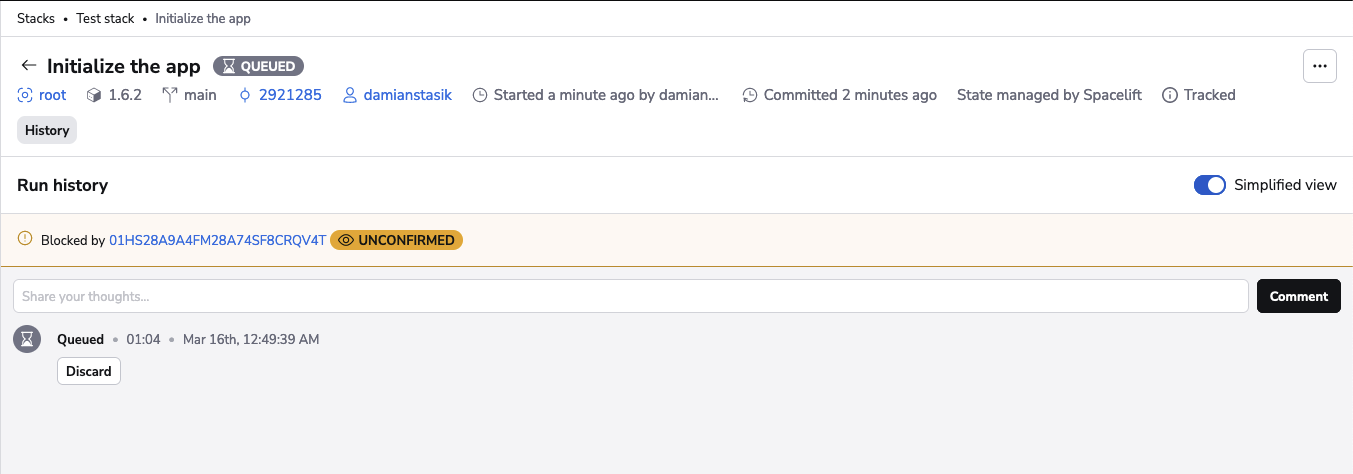
If your queued run isn't blocked by another run and isn't being promoted to the ready state, it could need:
- Approval
- Dependent stacks to finish
- External dependencies to finish
The user can discard a run while it's still queued, transitioning it to the terminal discarded state.
Ready»
Ready is a passive state, meaning no operations are performed. Ready runs are eligible for processing and are waiting for a worker to become available.
When a worker is available, the state will automatically transition to preparing. The user can discard a run even if it's ready, transitioning it to the terminal discarded state.
Discarded»
Discarded is a passive state, meaning no operations are performed. Discarded runs occur when the user manually stops a queued run or task before it can be picked up by the worker.
This is also a terminal state meaning that no further state can follow it. Runs that are discarded can't be moved to a different state.
Preparing»
Runs in the preparing state are eligible for processing (not being blocked or awaiting approvals) and worker nodes are ready to process them. The preparing state is when the handover and dialog between spacelift.io and the worker happens, for example:
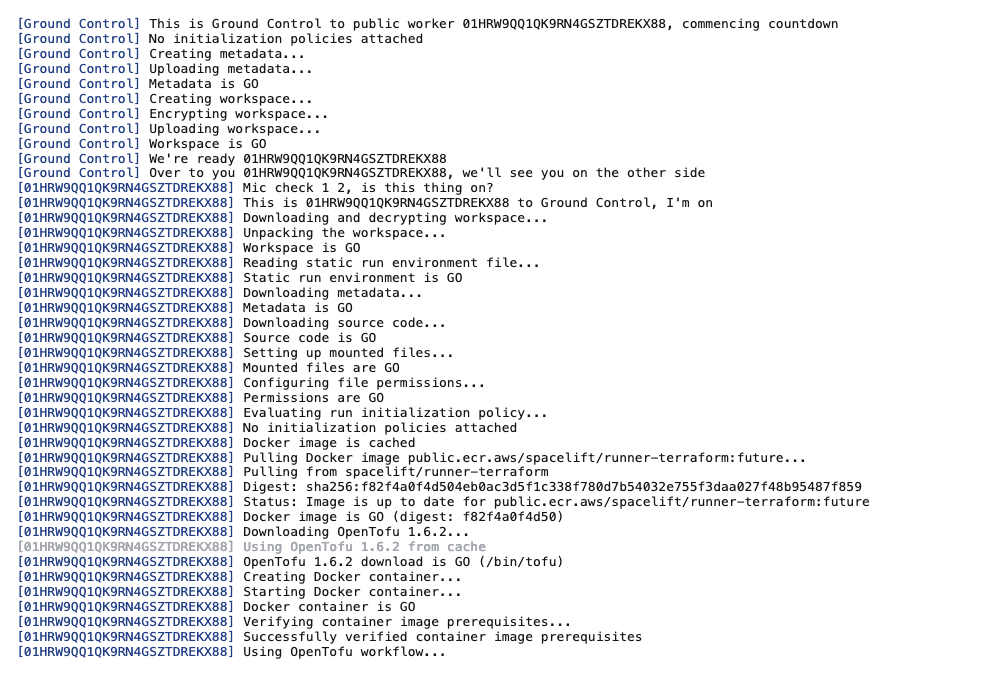
Ground Control refers to the bit directly controlled by Spacelift, when we ensure the worker node gets everything required to perform the job, and that the node can take over the execution.
Once the worker is able to pull the Docker image and use it to start the container, the preparing phase is over and the initialization phase begins. If the process fails for whatever reason, the run is marked as failed.
Initializing»
The initialization phase is handled exclusively by the worker and involves running pre-initialization hooks and vendor-specific initialization processes. For Terraform stacks, it would mean running terraform init in the right directory and with the right parameters.
Pre-initialization hooks and the rest of the initialization process all run in the same shell session, so environment variables exported by pre-initialization hooks are accessible to the vendor-specific initialization process. This is often the desired outcome when working with external secret managers like HashiCorp Vault.
If this phase fails, the run is marked as failed. Otherwise, the next step is determined by the type of the run being executed.
Failed»
Failed is a passive state, meaning no operations are performed. It's also a terminal state, so no further state can follow it.
If a run transitions into the failed state, something went wrong. In most cases the issue will be something related to your project like:
- Errors in the source code.
- Pre-initialization checks failing.
- Plan policies rejecting your change.
- Deployment-time errors.
In rare cases, errors in the Spacelift application code or third party dependencies can also make the job fail. These cases are clearly marked by a notice corresponding to the failure mode, reported through our exception tracker and immediately investigated.
Stopped»
Stopped is a passive state, meaning no operations are performed. It's also a terminal state, so no further state can follow it.
Some types of runs can be interrupted. You can send a stop signal from the GUI and/or API to the run, which is then passed to the worker handling the job. The worker decides whether to handle or ignore the stop signal.
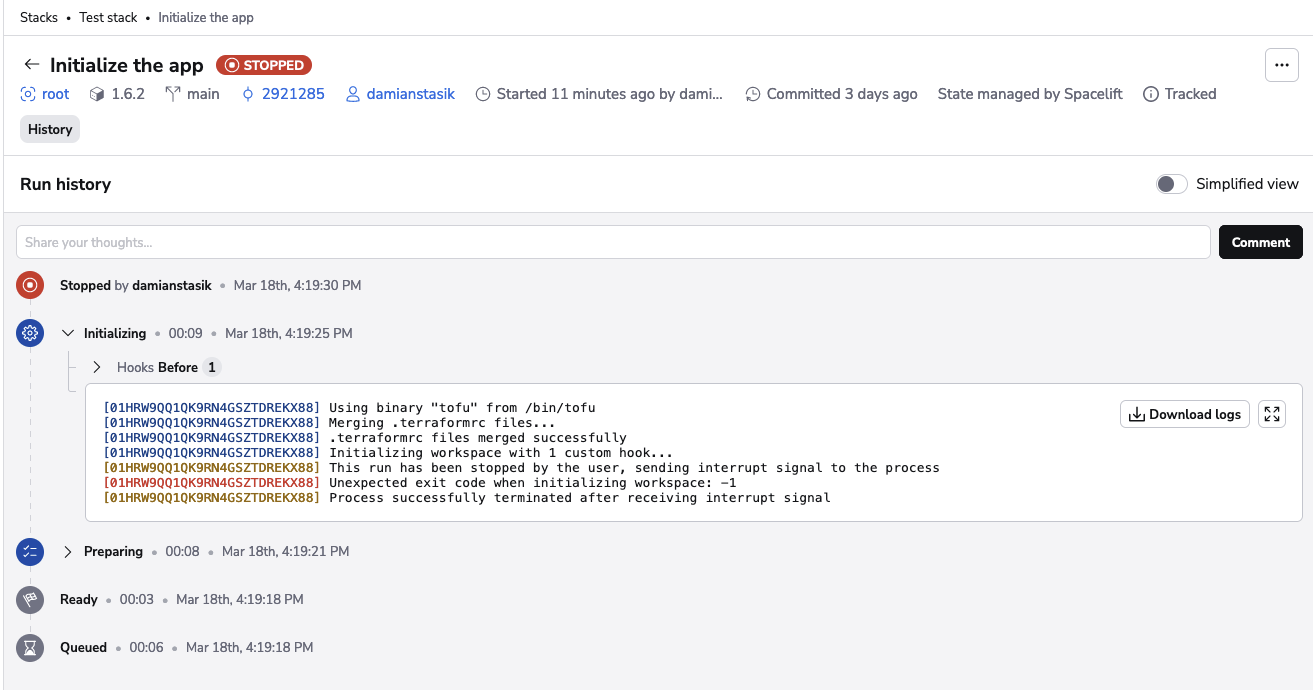
The stopped state indicates that a run has been stopped while initializing or planning, either manually by the user or by Spacelift (for proposed changes). Proposed changes will automatically be stopped when a newer version of the code is pushed to their branch to limit the number of unnecessary API calls to your resource providers.
Here's an example of a run manually stopped while initializing:
Finished»
Finished is a passive state, meaning no operations are performed. It's also a terminal state, so no further state can follow it.
Finished runs were executed successfully, though the success criteria will depend on the type of run.
Full list of potential run states»
| State | Description | Terminal? | Passive? |
|---|---|---|---|
NONE |
Stack is created but no initial runs have been triggered. Not offically a run state but is listed in the UI for informational purposes. | ❌ | ❌ |
QUEUED |
Queued, waiting for an available worker or for the stack lock to be released by another run. | ❌ | ✅ |
CANCELED |
Canceled by the user. | ✅ | ✅ |
INITIALIZING |
Run's workspace is currently initializing on the worker. | ❌ | ✅ |
PLANNING |
Worker is planning the run. | ❌ | ✅ |
FAILED |
Run failed. | ✅ | ✅ |
FINISHED |
Finished successfully. | ✅ | ✅ |
UNCONFIRMED |
Planned successfully, but run reports changes. Waiting for the user to review. | ❌ | ❌ |
DISCARDED |
Run's plan rejected by the user. | ✅ | ✅ |
CONFIRMED |
Run's plan confirmed by the user. Waiting for the worker to start processing. | ❌ | ❌ |
APPLYING |
Applying the run's changes. | ❌ | ❌ |
PERFORMING |
Performing the task requested by the user. | ❌ | ❌ |
STOPPED |
Stopped by the user. | ✅ | ✅ |
DESTROYING |
Worker performing a destroy operation on the managed resources. | ❌ | ❌ |
PREPARING |
Workspace being prepared for the run. | ❌ | ✅ |
PREPARING_APPLY |
Workspace being prepared for the change deployment. | ❌ | ✅ |
SKIPPED |
Run was skipped. | ✅ | ✅ |
REPLAN_REQUESTED |
Pending a replan and should get picked up by the scheduler. | ❌ | ❌ |
PENDING |
Deprecated state. | ❌ | ✅ |
READY |
Ready to start. | ❌ | ✅ |
PENDING_REVIEW |
Proposed run is waiting for post-planning approval policy sign-off. | ❌ | ❌ |
Log retention»
Run logs are kept for a configurable retention period. By default, run logs have a retention period of 60 days. If you need to customize the log retention period, configure a custom S3 bucket configuration for the run logs.
Run prioritization»
Every run waiting for a worker has one of three priority levels: high, normal, or low. New runs start at normal. Within a private worker pool, runs are scheduled in this order:
- High-priority runs, oldest first, regardless of run type.
- Normal-priority blocking runs (tracked runs, destroy runs, and tasks).
- Normal-priority proposed runs.
- Low-priority blocking runs.
- Low-priority proposed runs.
- Normal-priority drift detection runs.
- Low-priority drift detection runs.
Runs at the same position in that list are processed in the order they were created, oldest first. Low-priority tracked and proposed runs still go ahead of drift detection, so lowering a run's priority never lets scheduled drift detection starve it.
A priority you set stays with the run through every state change until a worker picks it up. A run set to low while it waits for confirmation is still low once confirmed.
A push policy can set the level a run starts with, so runs from certain users, branches, or stacks can be raised to high or lowered to low automatically. We only recommend automatic prioritization in special circumstances. For most users, the default order (tracked runs, then proposed runs, then drift detection runs) provides an optimal user experience.
You can manually change the priority of a run while it's in a non-terminal state if a private worker pool is processing the run. Runs on the public worker pool cannot be prioritized. Prioritizing a run does not change the order of runs within its own stack: a tracked run still waits for the tracked run ahead of it.
The priority of a run can be changed from the run's view, in the worker pool queue view, and through the API.
Run view»
- In the Spacelift UI, navigate to Ship Infra > Stacks.
- Click on the name of the stack whose run you will prioritize.
- In the Tracked runs tab, click the name of the run to prioritize.
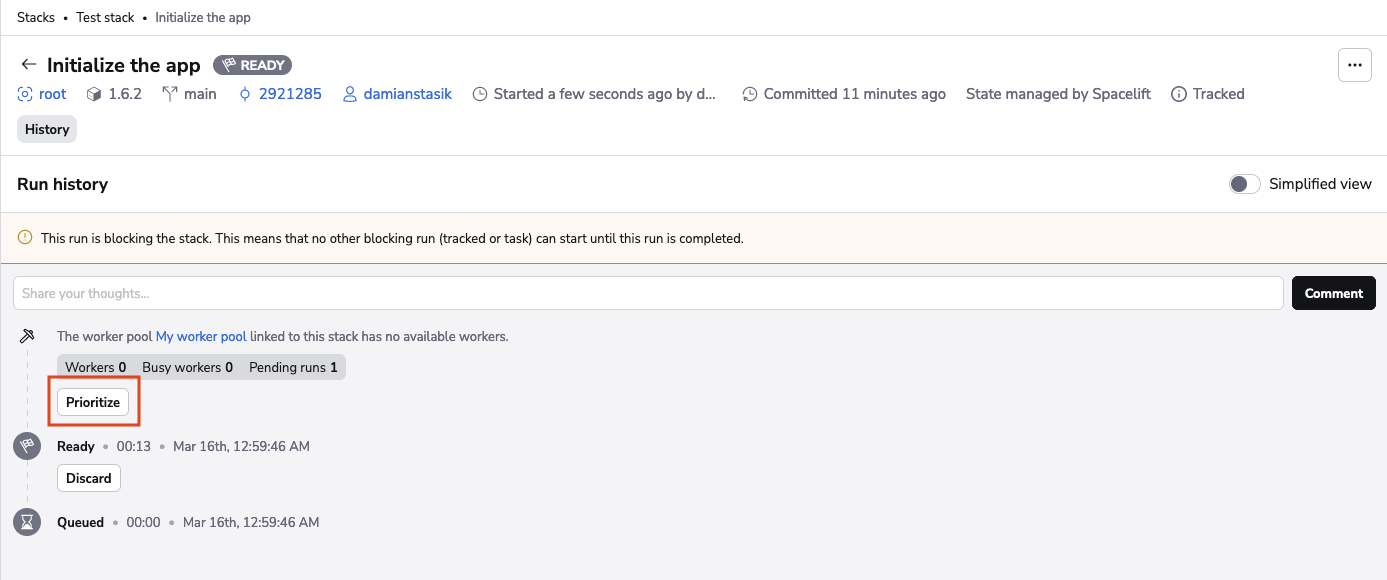
- If you are using a private worker pool and the run is in a non-terminal state, the worker pool entry shows the run's current level as a button (Normal priority by default). Click it and choose High priority, Normal priority, or Low priority.
A run at high or low priority shows a flag icon next to its title.
Worker pool queue view»
- In the Spacelift UI, navigate to Manage Organization > Worker Pools.
- Click the name of the worker pool assigned to the run.
- Click Queue.
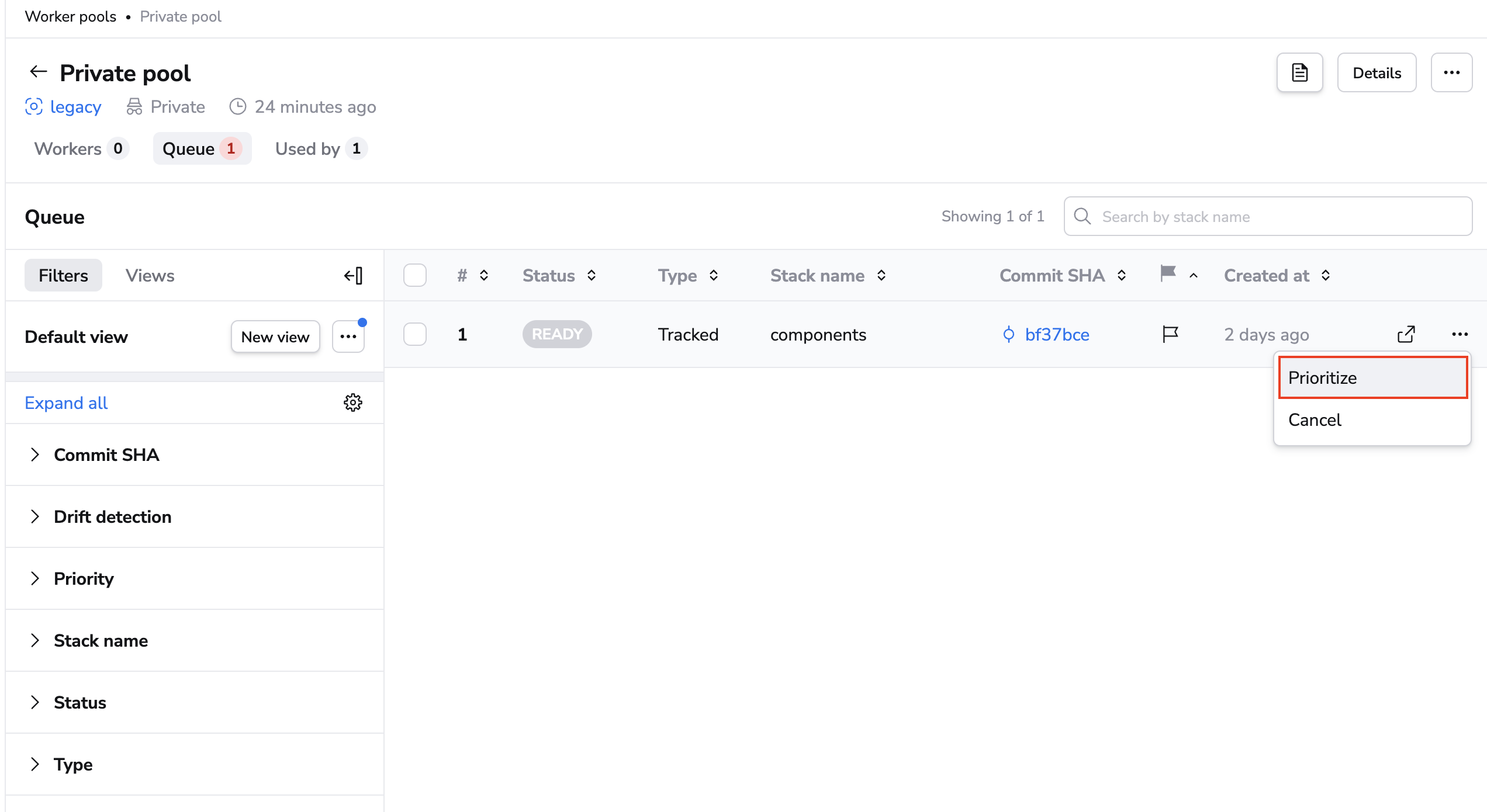
- Click the flag icon at the end of the run's row, or open the three dots menu, then choose High priority, Normal priority, or Low priority.
The queue can be filtered and sorted by priority, and bulk actions let you change the priority of several runs at once.
API»
The runPrioritySet GraphQL mutation takes a preset of high, normal, or low, and the priorityPreset field on Run returns the current level. The worker pool queue search (searchSchedulableRuns) can filter and sort by priorityPreset.
The runPrioritizeSet mutation and the isPrioritized field are deprecated. runPrioritizeSet with prioritize: true sets high priority and prioritize: false sets normal; isPrioritized is true exactly when priorityPreset is high.
Limit runs»
You can limit the number of runs being created for a VCS event.
- Hover over your name in the bottom left, click Organization Settings, then click Limits.
- Turn on the Limit of runs created for a VCS event toggle.
- Use the slider or enter a number in the box to set the maximum number of runs triggered by a VCS event for your account.
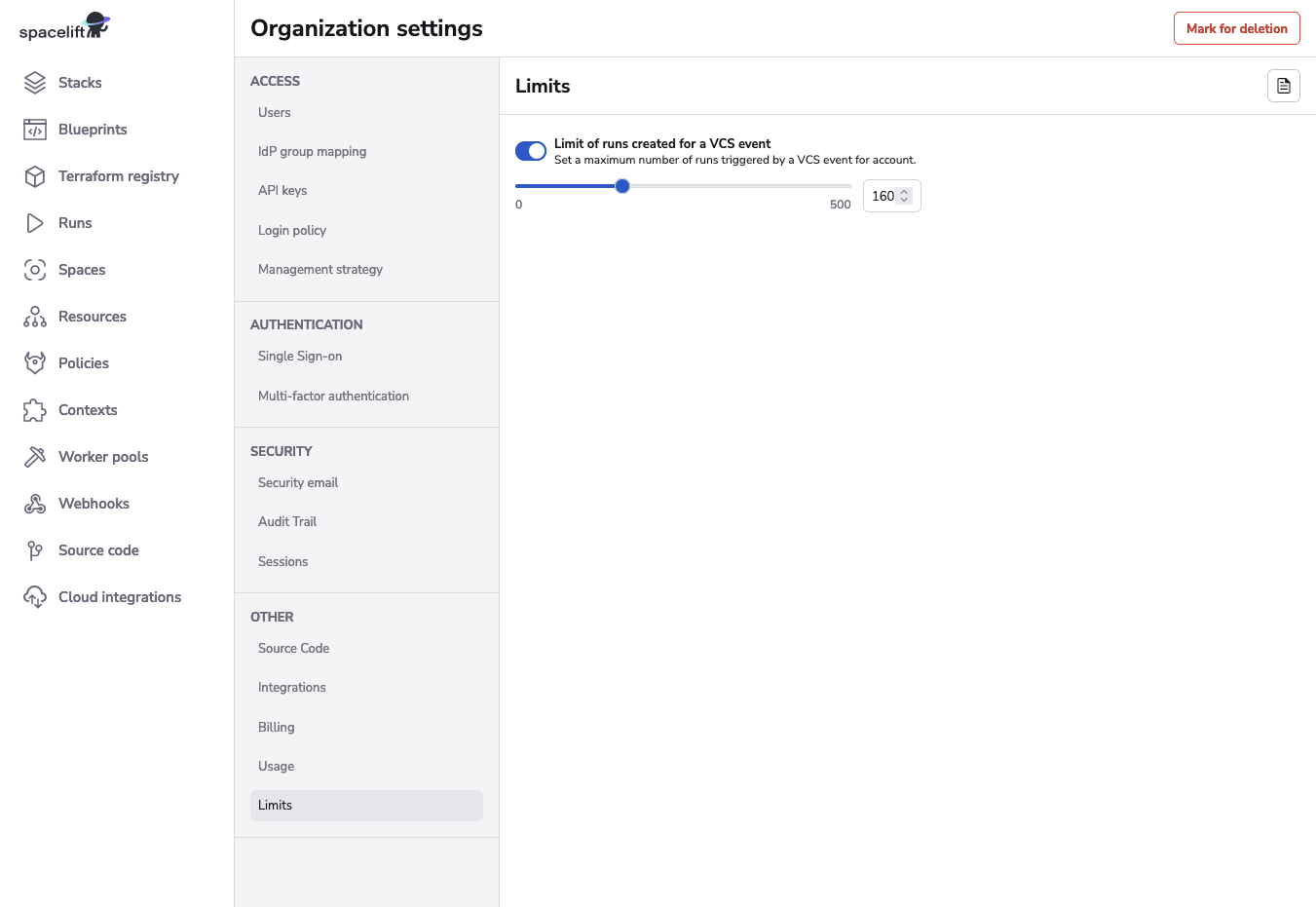
You can set a maximum number of up to 500 runs.
If the number of runs that are going to be triggered exceeds the limit set in Spacelift, you will be able to see this as the reason for failure in your VCS provider.
Run verification»
For your most sensitive stacks, you can add additional verification of runs based on arbitrary metadata you provide to runs when creating or confirming them. This works for any kind of run, including tasks.
- Metadata is passed to the created or confirmed run through the API or the spacectl CLI.
- Every time this interaction happens, add a new piece of metadata, which will form a list of metadata blobs inside the run.
- The metadata blobs are available in policies, including the private-worker side initialization policy.
Using additional verification allows you to sign the runs when you confirm them and later verify this signature inside of the private worker, through the initialization policy. There you can use the exec function, which runs an arbitrary binary inside of the Docker image. This binary verifies that the content of the run and signature match and that the signature is a proper signature of somebody from your company.