State management»
Spacelift offers a sophisticated state backend synchronized with the rest of the application to manage your Terraform state and maximize security and convenience.
The option to have Spacelift manage the state for you is only available during stack creation. You can also import an existing Terraform state at this point, which is useful for users who want to upgrade their previous Terraform workflow.
Info
If you're using Spacelift to manage your stack, do not specify any Terraform backend whatsoever. The one-off config will be dynamically injected into every run and task.
Benefits of Spacelift state management»
- Simple and easy setup: Allow Spacelift to manage your Terraform state during stack creation and you don't need to set anything up on your end.
- Protected against accidental or malicious access: Spacelift maps state access and state changes to legitimate Spacelift runs, thus automatically blocking all other unauthorized traffic.
- Encrypted data storage: Spacelift offers several different regions for data storage with Amazon S3.
How it works»
Spacelift state management uses S3, like much of the internet. We generate one-off credentials for every run and task and injecting them directly into the root of your Terraform project as a .tf file.
Warning
If you have some Terraform state backend already specified in your code, the initialization phase will keep failing until you remove it.
The state server is an HTTP endpoint implementing the Terraform standard state management protocol. Spacelift's backend always ensures:
- The credentials belong to one of the runs or tasks that are currently marked as active on our end.
- Their state indicates that they should be accessing or modifying the state.
Once this is established, we pass the request to S3 with the right parameters.
State history»
You can view your stack's state history in Spacelift. Navigate to Ship Infra > Stacks, click the name of the stack you want to view the history of, and view the State history tab. You'll see a list all the changes to your state and can rollback to an old version if needed.
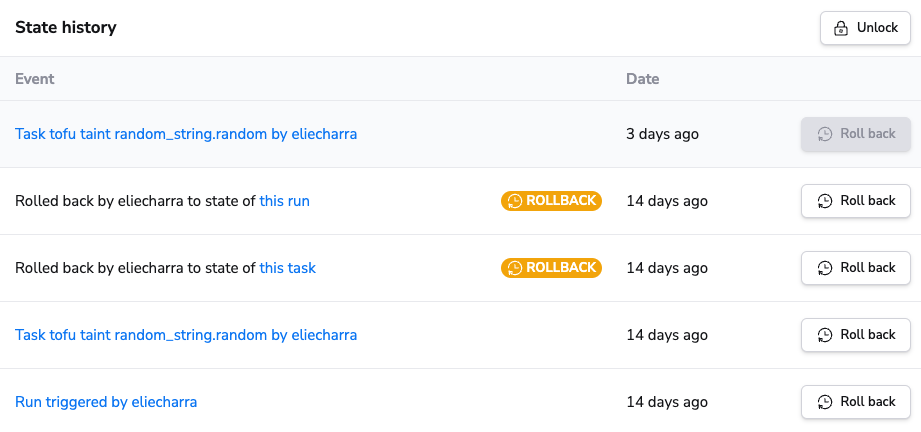
Not all runs or tasks will trigger a new state version, so you should not expect to see an exhaustive list of your runs and tasks in this list. For example, runs that produce no Terraform changes do not result in a new state version being created.
Non-current state versions are kept for 30 days.
State rollback»
Although it's rare, you can sometimes end up with a broken or corrupted state, such as when a bug exists in a Terraform provider upgrade. State rollback allows you to recover from this by rolling back your state to a previous version.
Rolling back your state will not apply any changes to your current infrastructure. It just reverts your state to an older version. You must then trigger the proper tasks or runs to fix the state and re-apply the desired Terraform configuration.
Warning
State rollback should only be used as a break-glass operation just after a corrupted state has been created.
If a stack is currently using a rolled-back state, a warning will be shown in the stack header.

To roll back a state, these conditions must be satisfied:
- You must be a stack admin.
- The stack must be locked.
- The stack must not have any pending runs or tasks.
If those three conditions are met, you will be able to rollback your stack to a previous version of your state file.

After rollback completes successfully, a new version of your state will appear above the other state versions and will be marked as a rollback.

Importing resources into your Terraform state»
If you have an existing resource that was created by other means, and would like that resource to be reflected in your Terraform state, you need to use the Terraform import command. When managing your own Terraform state, you would typically run this command locally to import said resource(s) to your state file.
When Spacelift is managing your Terraform state, you can import resources with tasks:
- Select the Spacelift stack to which you would like to import state for.
- Navigate to the Tasks tab.
- Run the
terraform importcommand needed to import your resourcesc by type theterraform importcommand into the text input and click Perform.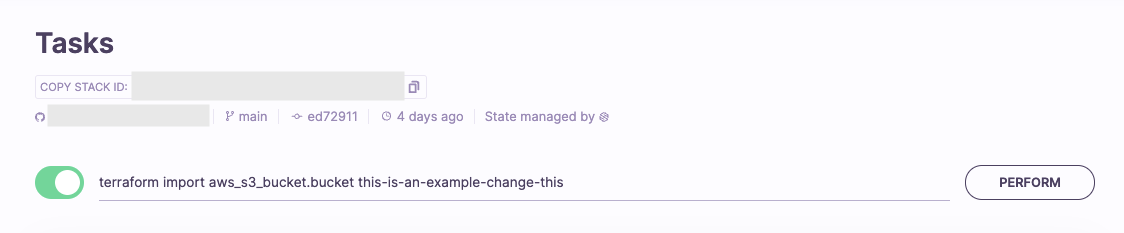
- If you are using Terragrunt on Spacelift, you will need to run
terragrunt import.
- If you are using Terragrunt on Spacelift, you will need to run
- Follow the status of your task's execution to ensure it was executed successfully. When completed, you should see an output like this within the "Performing" step of the task.
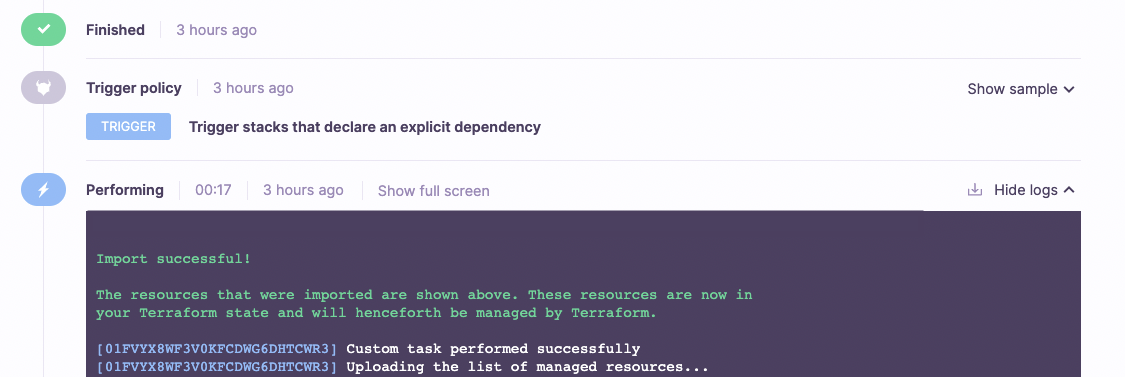
Importing existing state file into your Terraform stacks»
On an existing stack»
State import allows you to import a state on top of the latest managed state. To be able to import a state, these conditions must be satisfied:
- You must be a stack admin.
- The stack must be locked.
- The stack must not have any pending runs or tasks.
Info
The maximum allowed file size for a state is 100MB.
To import a new state:
- Navigate to the State history tab on your stack, and then click Import state.

- Upload a valid Terraform state file.
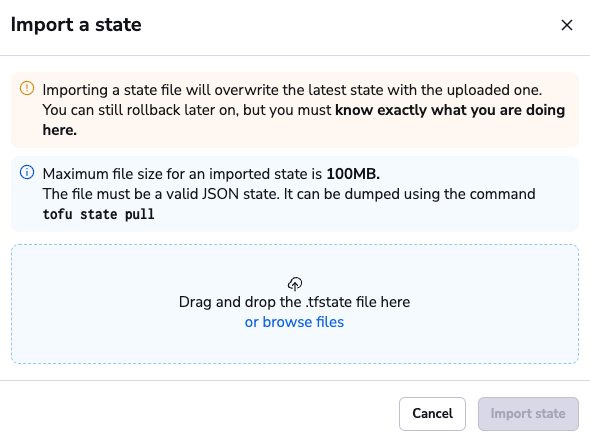
-
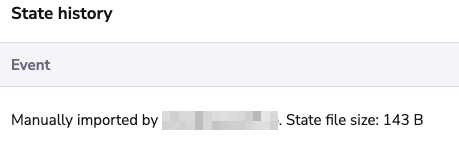
Once the file is uploaded, click Import state. The imported state will appear in the list as manually imported.
During stack creation»
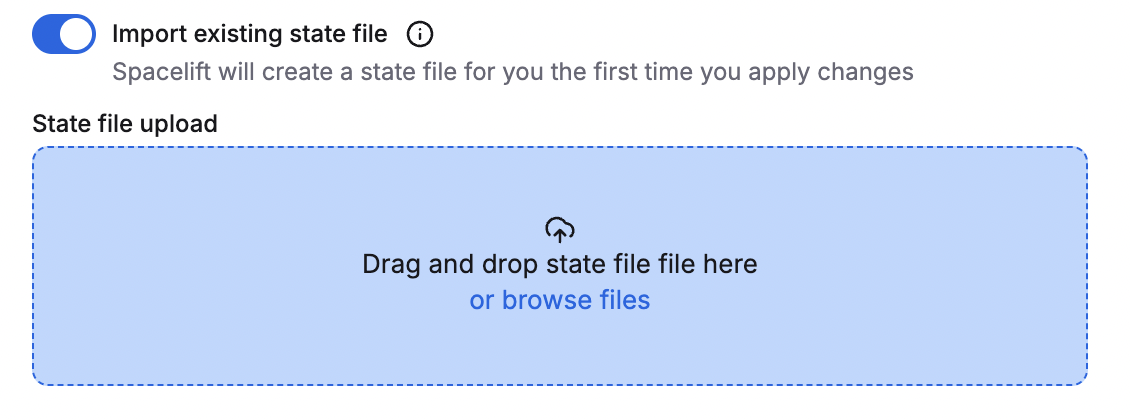
When creating a stack, you can import an existing Terraform state file so that Spacelift can manage it going forward.
You can also import an existing Terraform state file when using the Spacelift Terraform provider.
| stack.tf | |
|---|---|
1 2 3 4 5 6 7 8 9 10 11 | |
Exporting Spacelift-managed Terraform state file»
Info
If you enable external state access, you can export the stack's state from outside of Spacelift.
If a Terraform stack's state is managed by Spacelift and you need to export it, you can run this command in a task:
1 | |
The local workspace is discarded after the task has finished, so you most likely want to combine it with another one that pushes the terraform.tfstate file to a remote location. Here is an example of pushing the state file to an AWS S3 bucket (without using an intermediary file):
1 | |
Configure Terraform plan locking»
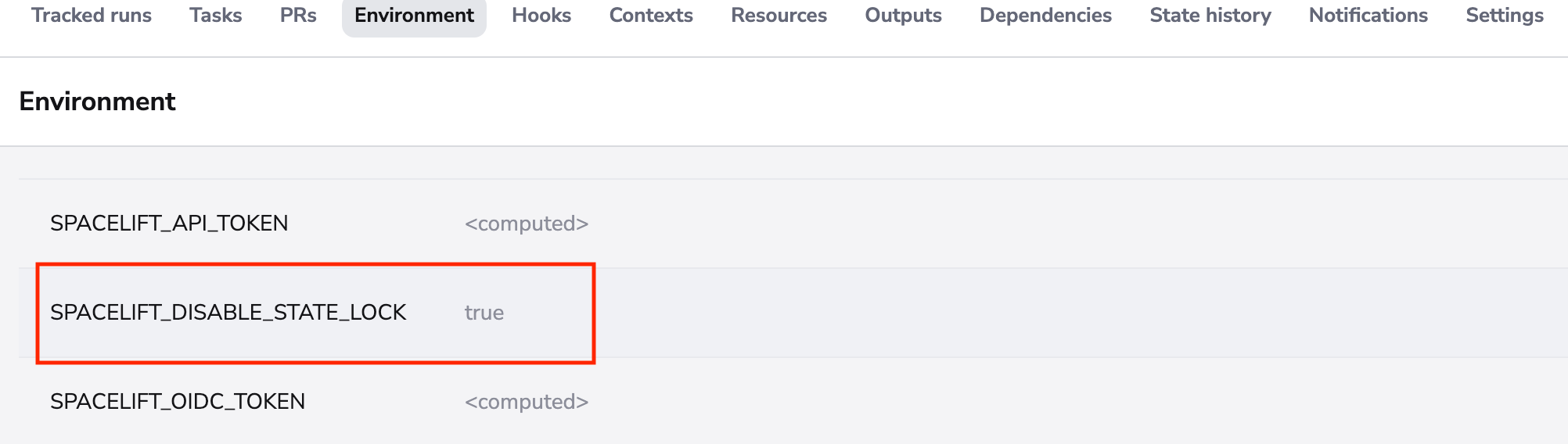
By default, terraform plan acquires a state lock. If you want to disable such lock during planning, you can pass SPACELIFT_DISABLE_STATE_LOCK to the stack Environment.
Warning
Disabling the planning state lock may lead to incorrect results in a concurrent apply operation to the state.