Templates Workbench»
The Templates Workbench is the platform team interface for creating, managing, and maintaining reusable infrastructure templates. It provides comprehensive tools for template authoring, version management, and deployment oversight.
Overview»
The Templates Workbench is designed for:
- Platform engineers who create and maintain infrastructure templates
- Template authors who design self-service infrastructure offerings
- Operations teams who need visibility into all deployments
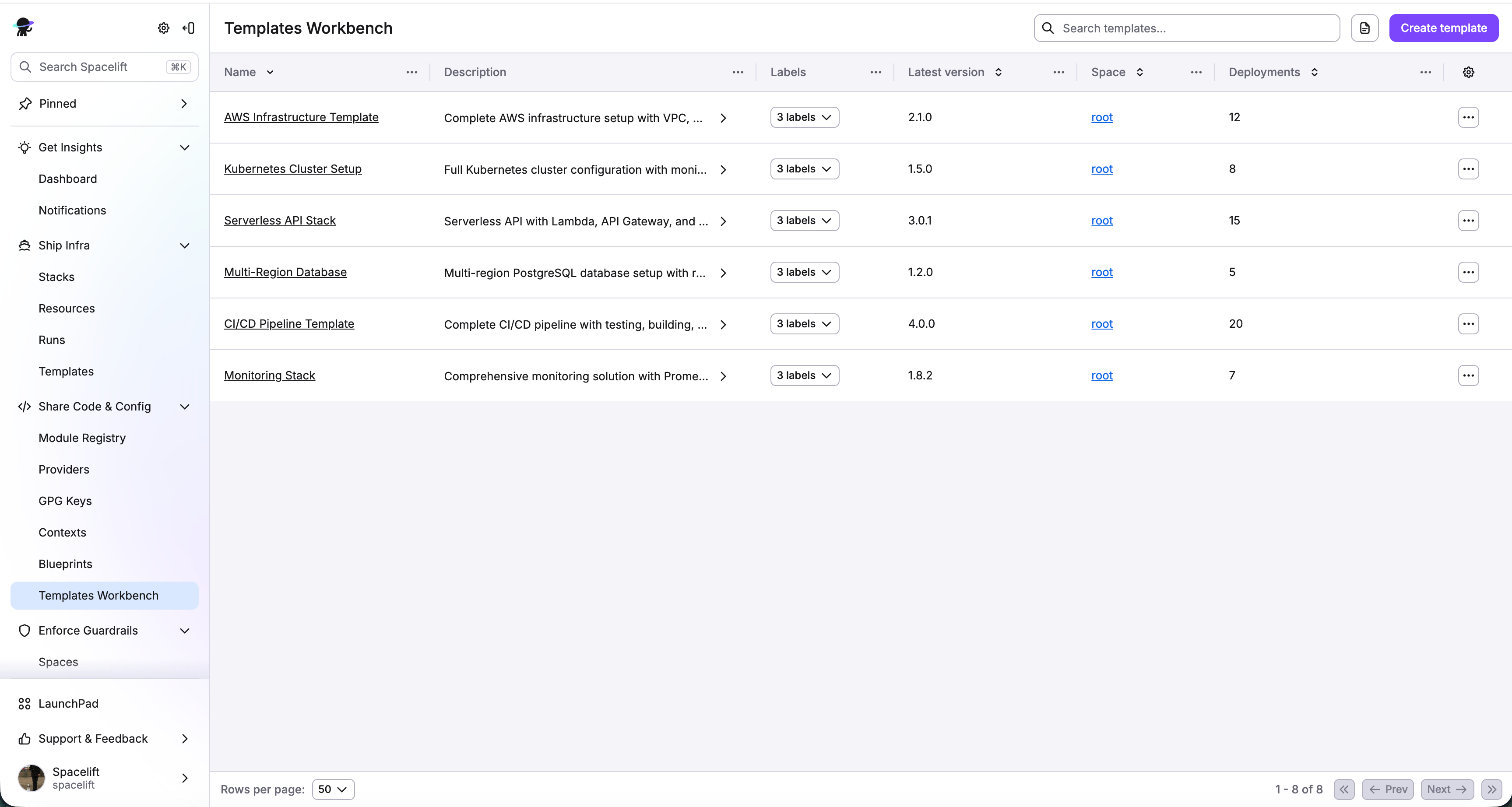
Creating a Template»
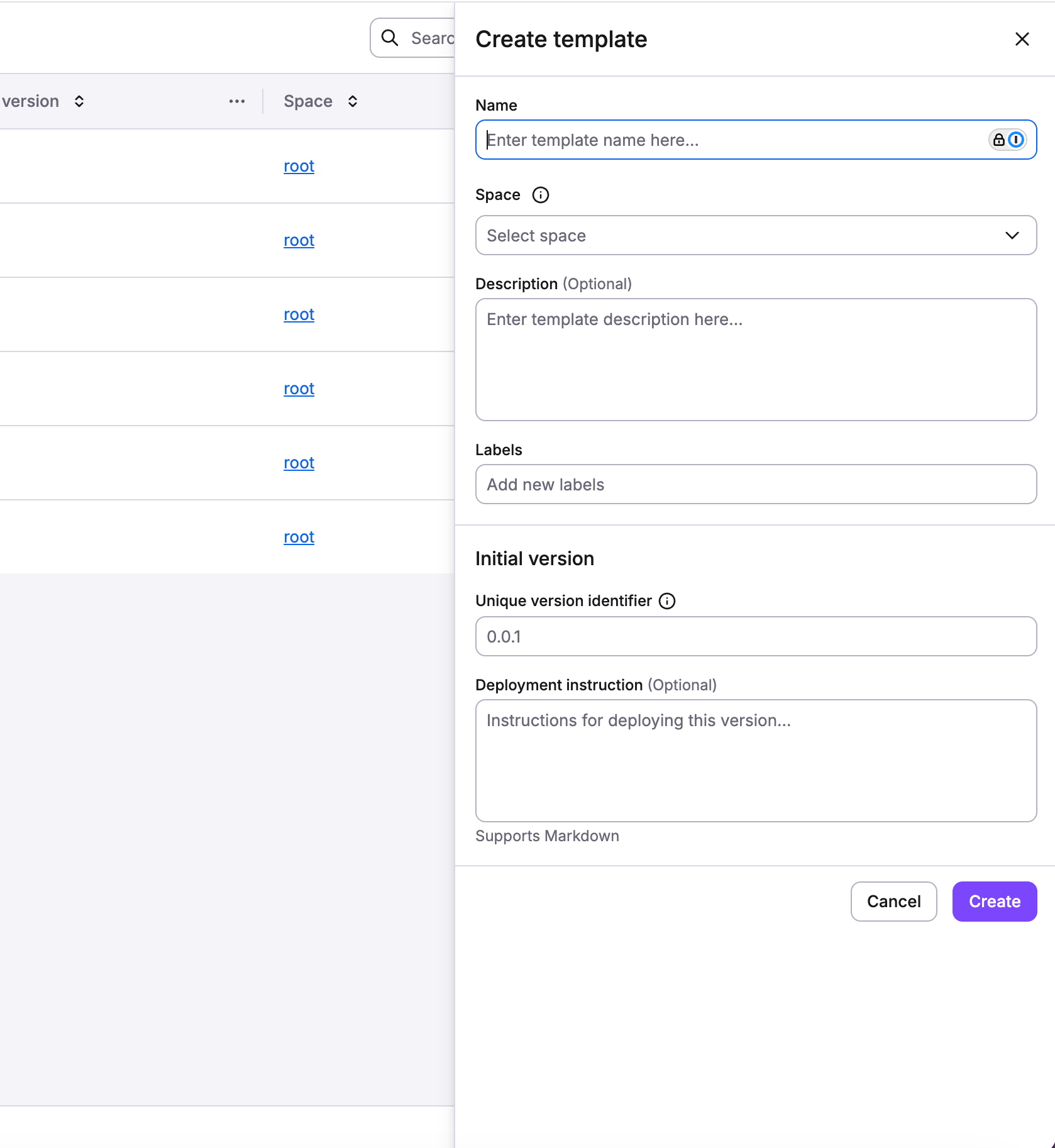
To create a new template:
- Navigate to Templates Workbench
- Click Create template
- Fill in the template details:
- Name: Unique identifier within the space
- Space: The space where the template will be created
- Description: Optional description of the template's purpose
- Labels: Optional metadata tags for organization
- Initial Version: Version number (e.g., "1.0.0"), we don't force to use any versioning convention.
- Deployment Instructions: Optional Markdown instructions for users, which can be use to show more detailed explanation of deployment configuration
Managing Template Versions»
Each template can have multiple versions, allowing you to evolve your infrastructure configuration over time while maintaining backwards compatibility.
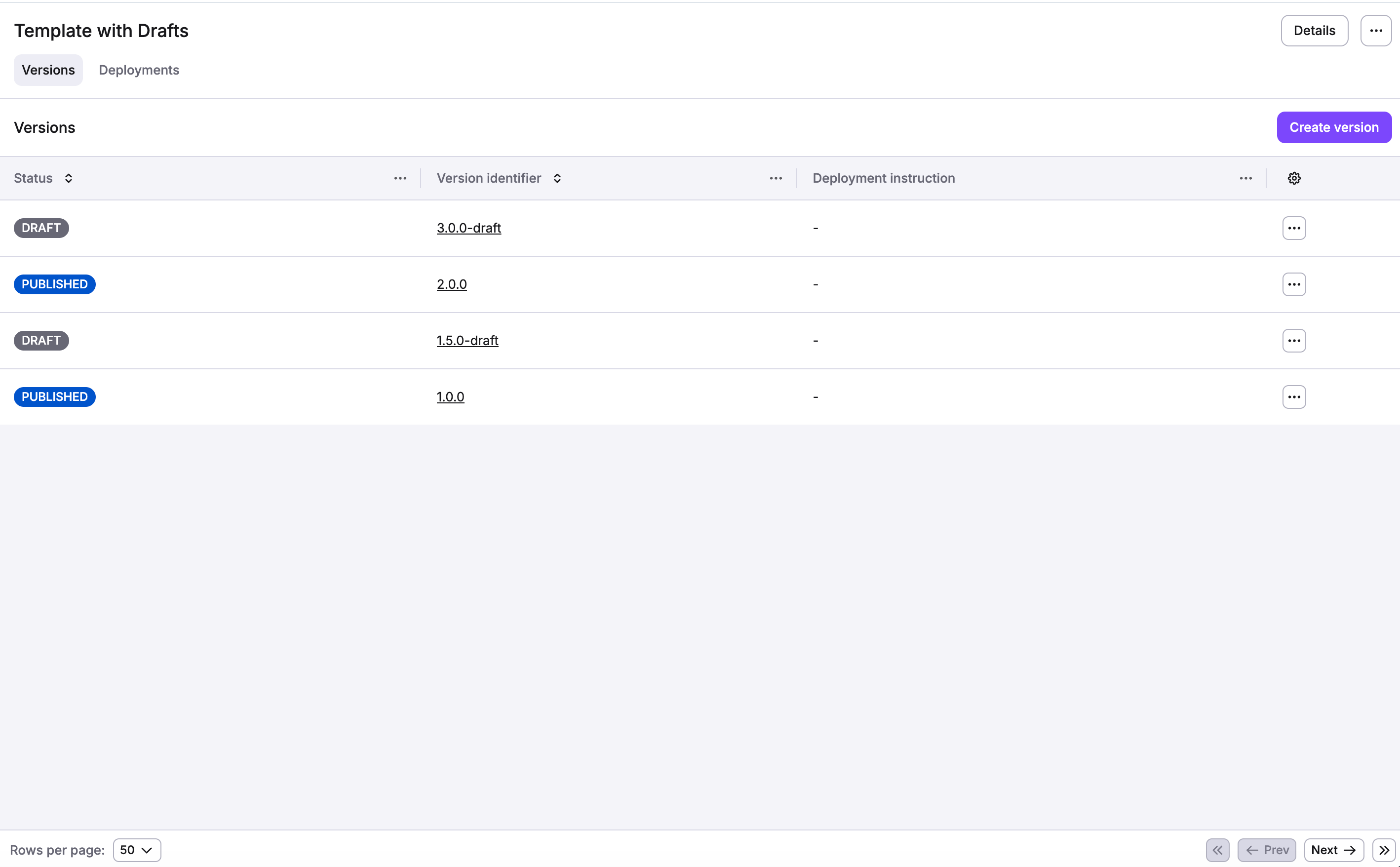
Template Version States»
- Draft: The version is under development and can be edited. Deployments cannot be created from draft versions.
- Published: The version is finalized and read-only. Deployments can be created from published versions.
Warning
Publishing a template version is a one-way operation. Once published, a version cannot be reverted to draft state. You must create a new version for further changes.
Creating a New Version»
- Open your template from the Templates Workbench
- Navigate to the Versions tab
- Click Create version
- Optionally clone from an existing version
- Enter a version number
- Add deployment instructions (optional, Markdown supported)
Cloning a Version:
- Start with an existing version's configuration
- Useful for incremental updates
- Preserves template body, inputs, and configuration
- You can then modify as needed
Editing the Template Body»
The template body is a YAML configuration that defines the infrastructure to be provisioned and the inputs users can provide.
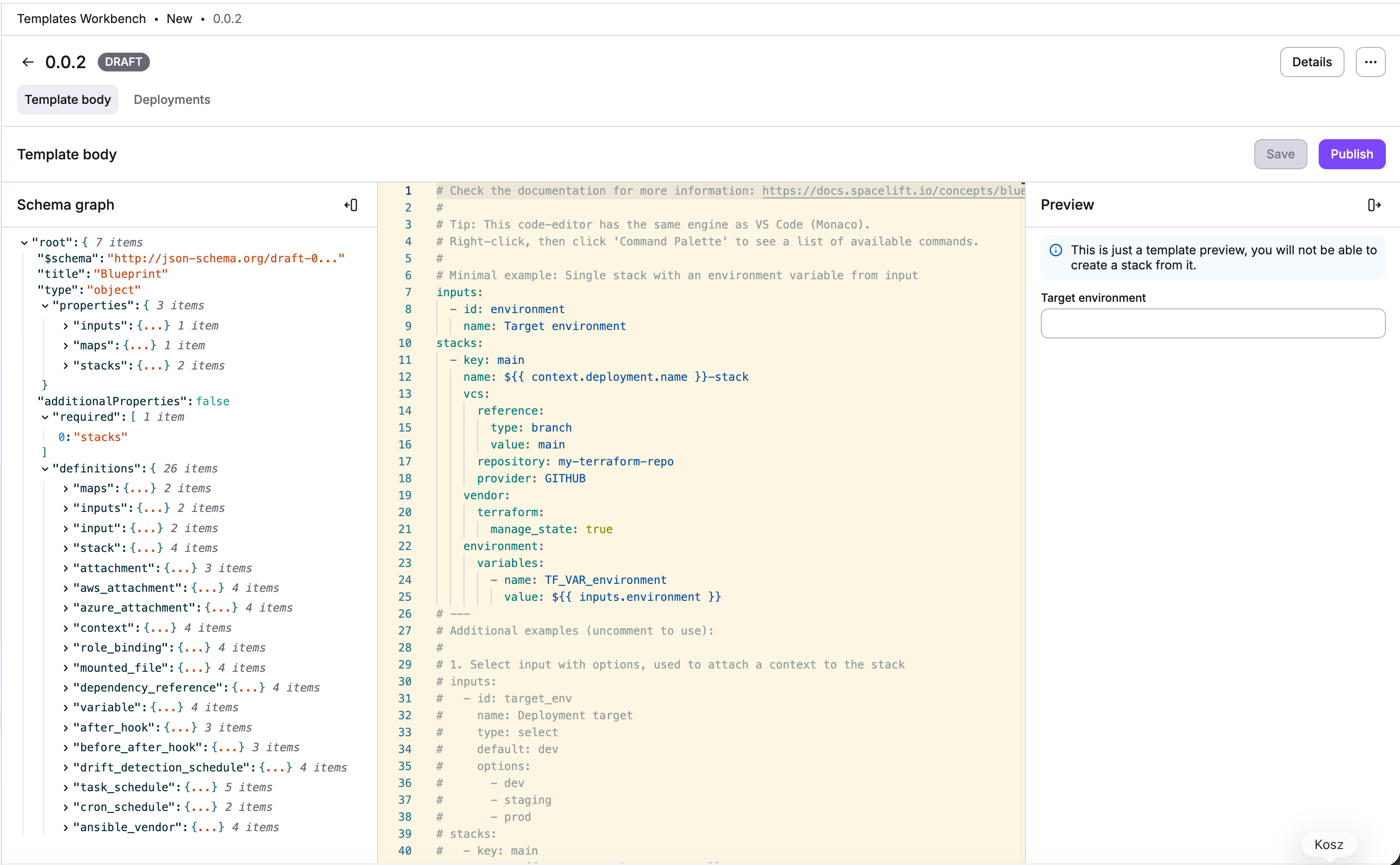
The template body uses YAML format and supports the same configuration as Blueprints. Here's a minimal example:
1 2 3 4 5 6 7 8 9 10 11 12 13 14 15 16 17 18 19 | |
For detailed template body syntax and configuration options, see the Template Configuration section.
Publishing a Version»
Once your template version is ready:
- Click Publish in the template body editor
- Review the parsed template configuration
- Confirm the action in the modal
- The version becomes read-only and available for deployments
Tip
Check your template YAML configuration thoroughly in draft state before publishing, as published versions cannot be edited.
What Happens When Publishing:
- Version state changes from Draft to Published
- Version is pinned to the current VCS commit (deterministic)
- Template becomes available in the marketplace
- Users can create deployments from this version
- Version becomes immutable (cannot be edited)
Deleting a Version»
You can delete a template version if:
- It has no deployments
- You have delete permission in the template's space
To delete a version:
- Navigate to the version in the versions list
- Click Delete
- Confirm the deletion
Warning
Versions with existing deployments cannot be deleted. You must delete all deployments first.
Managing Deployments»
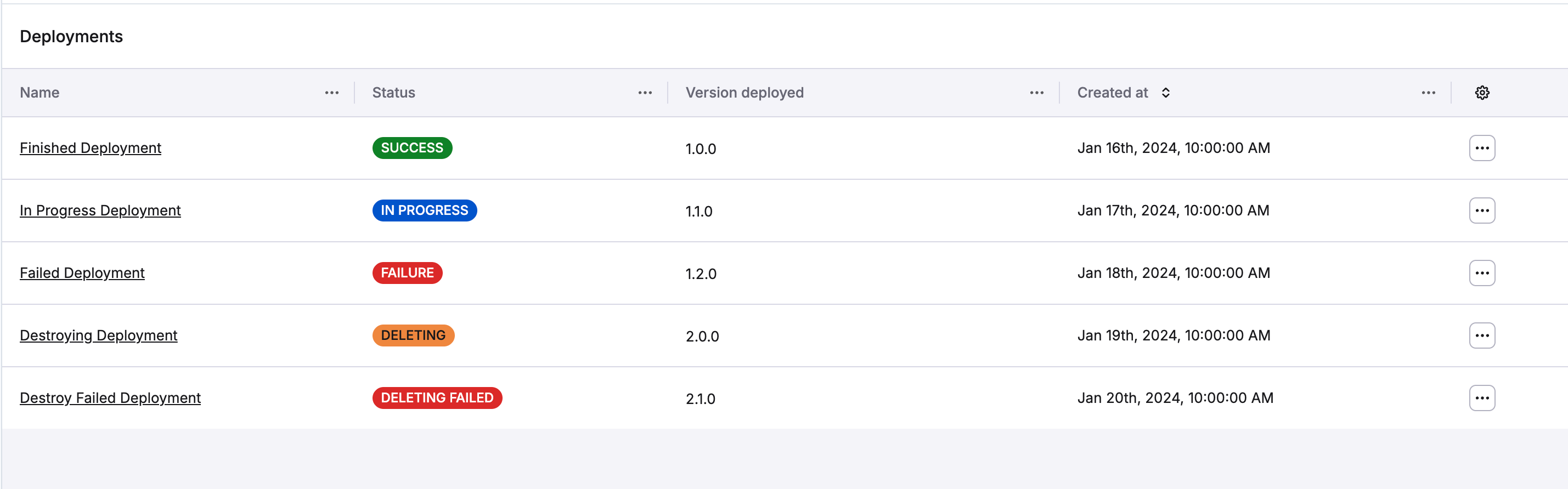
The Templates Workbench provides visibility into all deployments created from your templates.
Tip
You can also see all deployments for specific template version on version view.
Deployment States»
| State | Description | Actions Available |
|---|---|---|
| InProgress | Being created | View only |
| Finished | Completed successfully | View, Update, Delete |
| Failure | Creation failed | View, Update, Delete |
| Unconfirmed | Awaiting confirmation | View only |
| Destroying | Resources being destroyed | View only |
| DestroyingFailed | Destruction failed | View, Delete |
| Discarded | Deployment discarded | View, Update, Delete |
Updating a Deployment version»
Platform teams can update deployments to use different template versions:
- Navigate to the deployment details
- Click Update version
- Select a different published version
- Confirm the update
Update Behavior:
- Deployment switches to the new version
- Stacks are updated (not recreated)
- New version's configuration is applied
- New tracked run is triggered
Warning
You are only able to update to version if it has exactly the same stack keys and have no new required inputs
Updating a Deployment»
There is also a possibility to update deployment inputs:
- Navigate to the deployment details
- Click Update deployment
- Update inputs
- Confirm the update
Update Behavior:
- Stacks are updated (not recreated) with new configuration
- New tracked run is triggered
Deleting a Deployment»
To remove a deployment:
- Navigate to the deployment details or list
- Click Delete
- Confirm the deletion
Deployment Details»
When viewing a specific deployment, you can access:
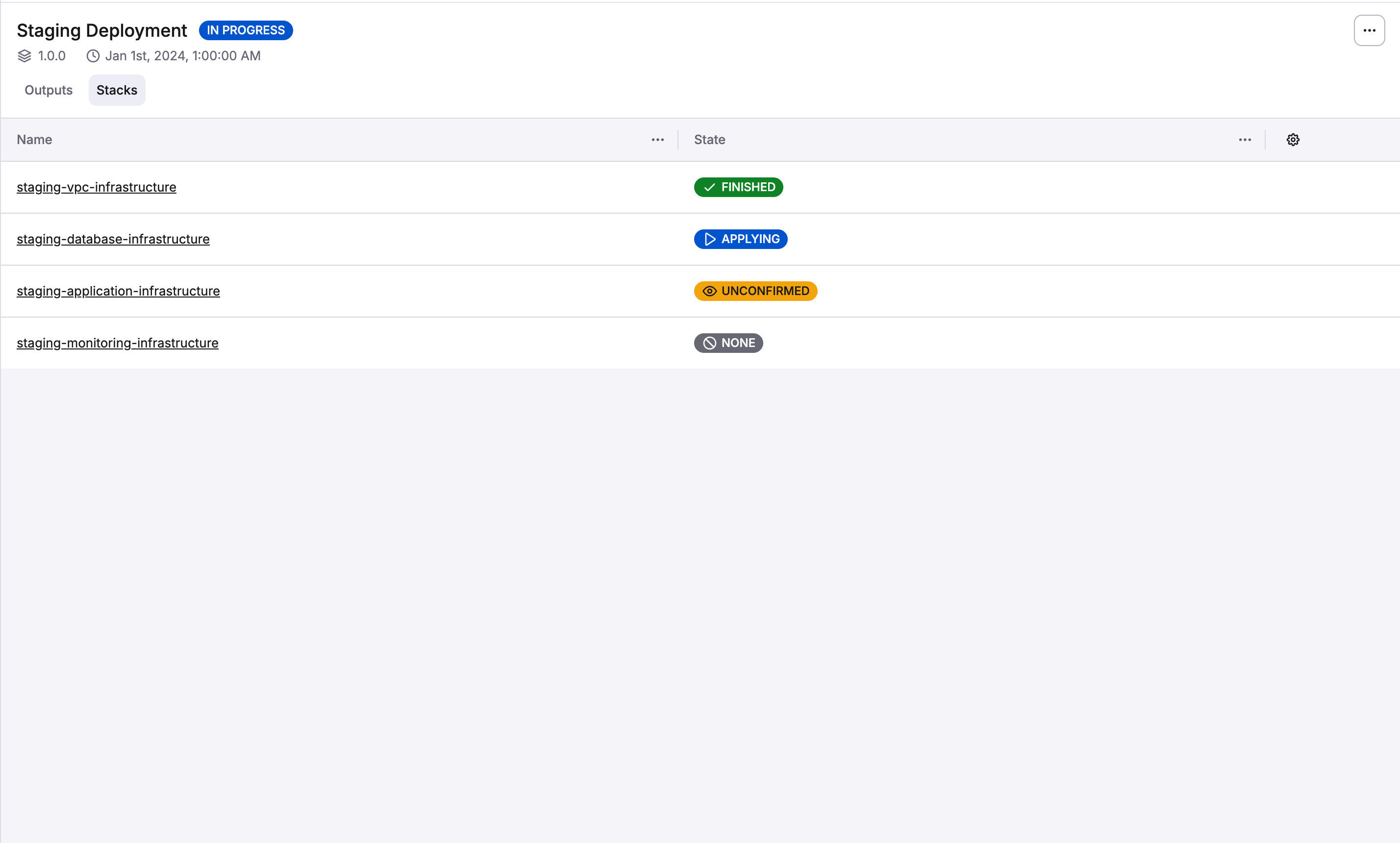
Stacks Tab»
View all stacks created by the deployment
Warning
Stacks created by template deployments are immutable and can't be edited like regular stacks, even by admins. The only way to modify them is by updating the deployment version or creating a new template version. There is one exception to this rule: a stack becomes mutable when its deployment is deleted, in case something fails and requires manual changes.
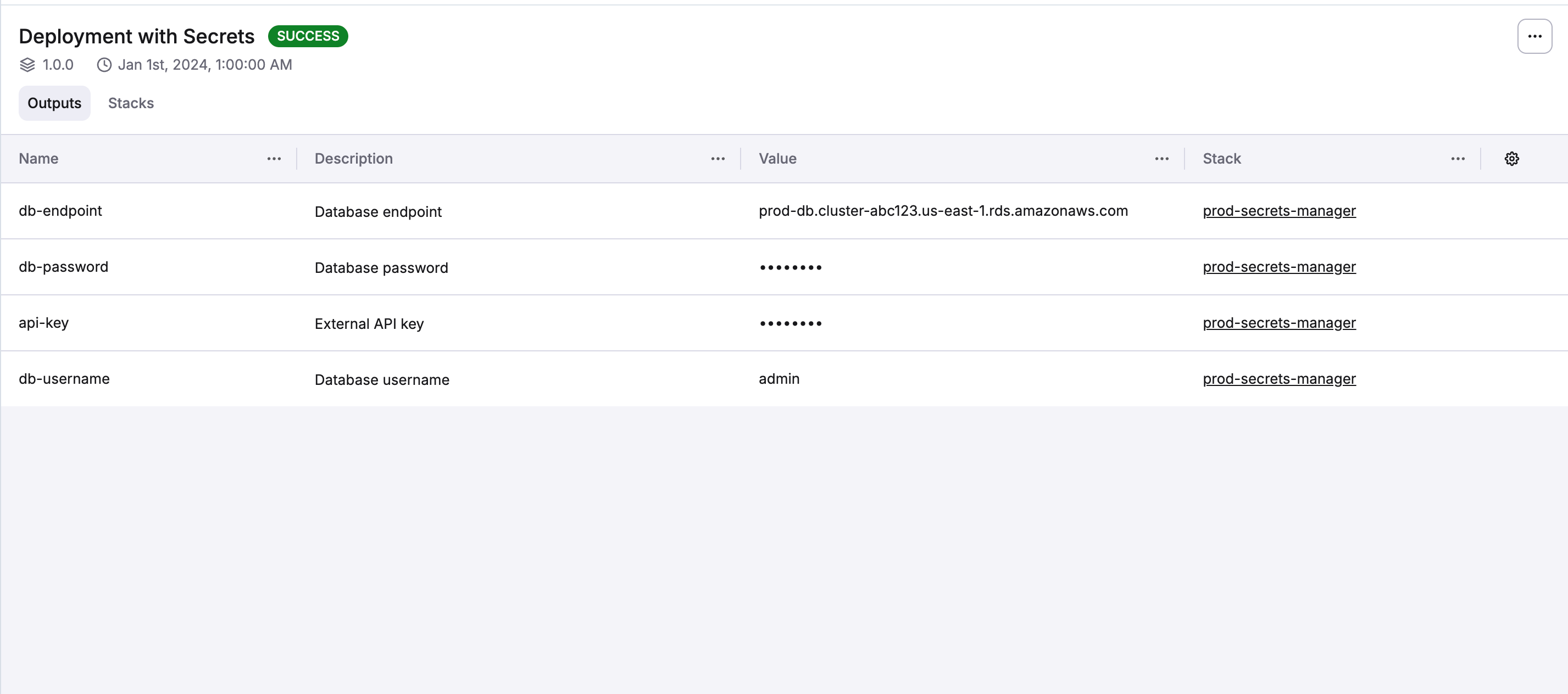
Outputs Tab»
On this view you can find all outputs from all stacks that were created with specific deployment.
Change History Tab»
The Change History tab provides a chronological audit trail of every change applied to a deployment. Entries are grouped by date and each card shows:
- Version badges — the template version the deployment moved from and to (e.g.
1.0.0 → 1.1.0), or the current version if no version change occurred - Input changes — a summary of which inputs were modified, with previous and new values (secret values are masked)
- YAML diff — when the template body changed between versions, an expandable side-by-side diff is available
- Timestamp — the exact time the change was applied
The most recent entry reflects the current state of the deployment and cannot be reverted to.
Reverting a Deployment»
Each change history entry (except the latest) has a Revert to button. Use it to restore the deployment to the exact state captured in that entry — both the template version and all input values at that time.
Revert process:
- Open the Change History tab on the deployment details page
- Find the entry you want to revert to
- Click Revert to
- Review the confirmation modal, which shows:
- Version rollback — if the template version will change, the current and target versions are displayed
- Input changes — a list of inputs that will be updated, with their current and target values
- Click Revert to confirm
After confirming, the deployment process starts again with the restored configuration. Progress is visible on the deployment details page.
Warning
Reverting is not available when a deployment is in InProgress, Unconfirmed, or Destroying state. Wait for the current operation to complete before reverting.
Permissions in the Workbench»
Actions available depend on your permissions:
| Action | Required Permission |
|---|---|
| View templates | Space Read access |
| Create template | CreateBlueprintsVersionedGroup or Space Admin |
| Edit template | UpdateBlueprintsVersionedGroup or Space Admin (in template's space) |
| Delete template | DeleteBlueprintsVersionedGroup or Space Admin (no versions) |
| Create version | UpdateBlueprintsVersionedGroup or Space Admin |
| Publish version | UpdateBlueprintsVersionedGroup or Space Admin |
| Delete version | UpdateBlueprintsVersionedGroup or Space Admin (no deployments) |
| View deployments | Space Read access |
| Update deployment | UpgradeBlueprintDeployment or Space Admin |
| Revert deployment | RollbackBlueprintDeployment or Space Admin |
| Delete deployment | DeleteBlueprintDeployment or Space Admin |
Related Resources»
- Template Overview - General information about templates
- Template Deployments - End user deployment interface
- Template Configuration - Complete YAML configuration reference
- Blueprints - Programmatic stack creation alternative