Okta OIDC Setup Guide»
You can sign in to your Spacelift account using an OIDC integration with Okta. This example will walk you through the setup.
Warning
Before setting up SSO, it's recommended to create backup credentials for your Spacelift account for use in case of SSO misconfiguration, or for other break-glass procedures. You can find more about this in the Backup Credentials section.
Prerequisites»
- Spacelift account, with admin permissions. If you are not an admin, you cannot configure SSO.
- Okta account, with permission to create Okta App Integrations.
Configure Account Settings»
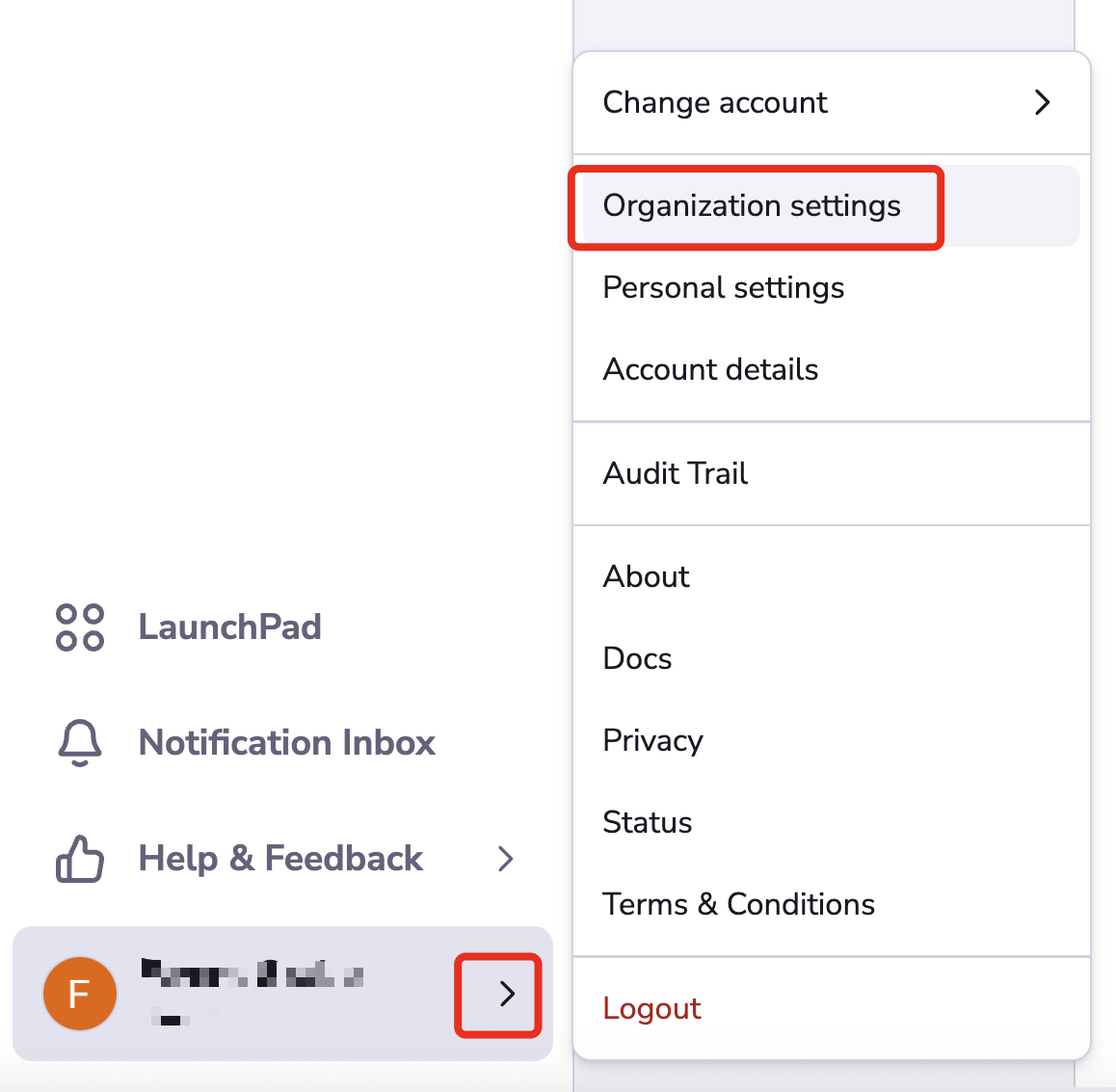
Open Organization settings for your Spacelift account. You can find this panel at the bottom left by clicking the arrow next to your name.
Setup OIDC»
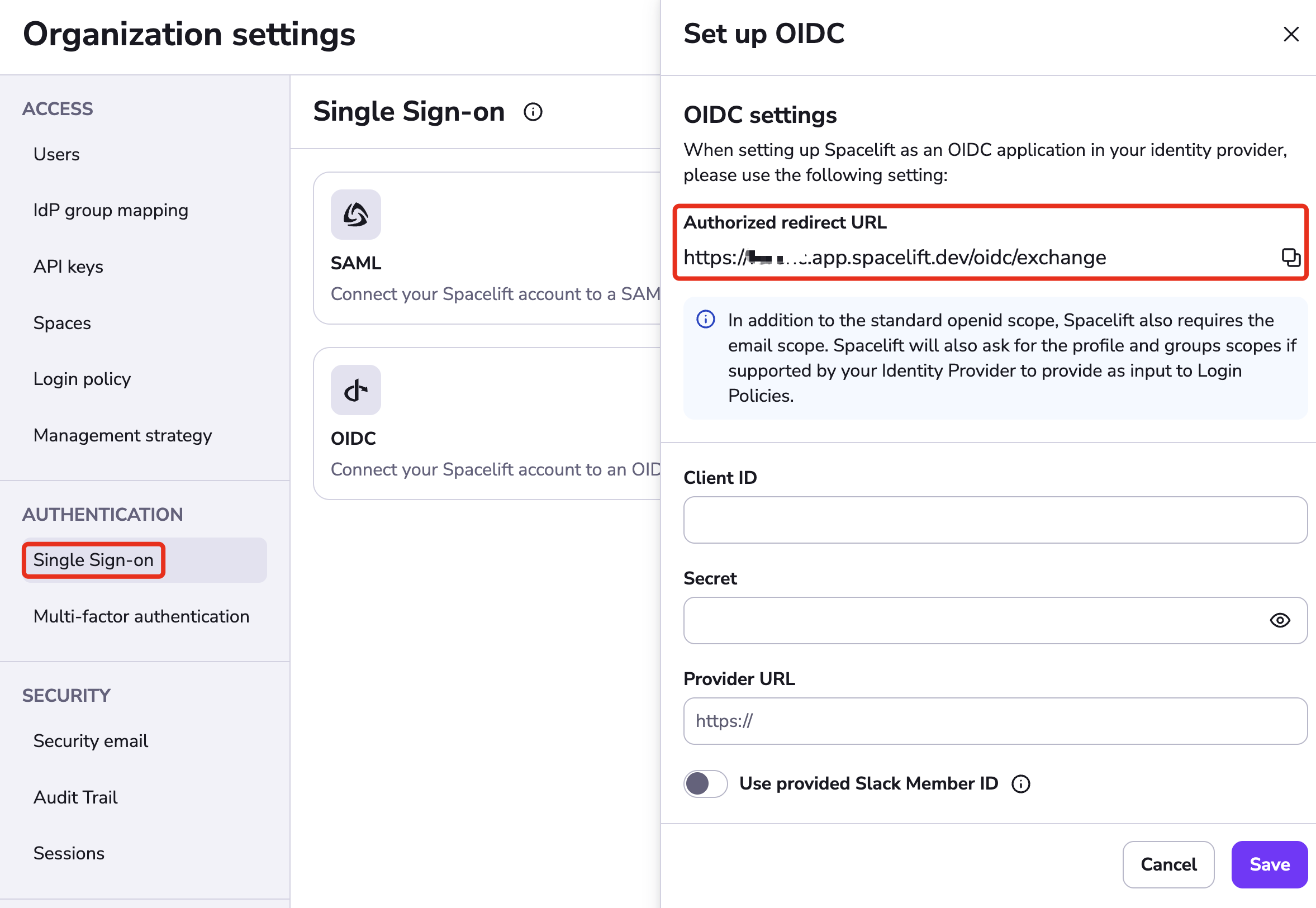
Select Single Sign-On under Authorization. Click Set up under the OIDC section.
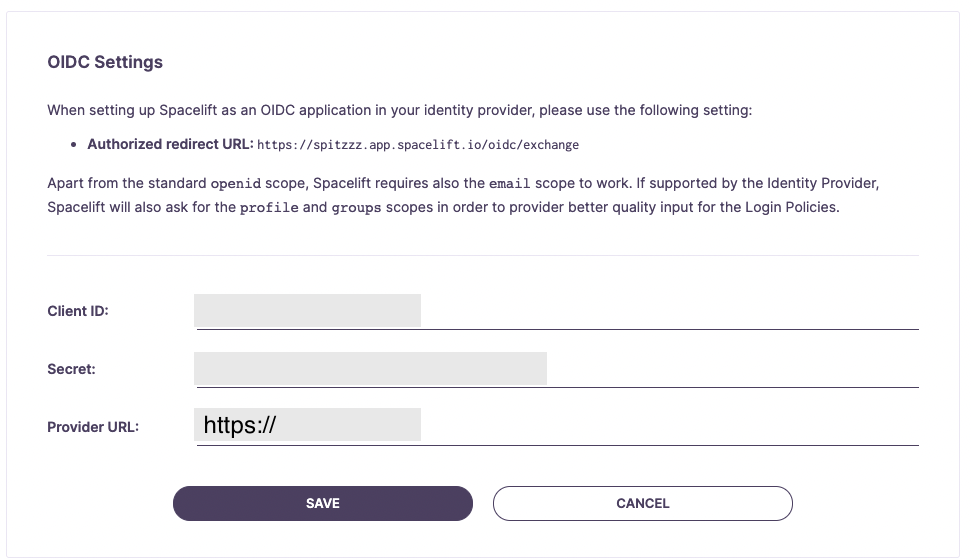
The drawer that opens contains the Authorized redirect URL, which you will need to copy for your login provider. The input fields will be filled later with information from your provider.
Okta: Select Applications»
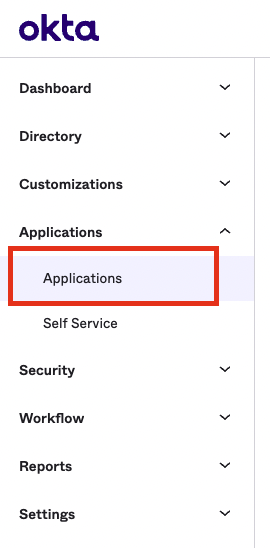
In a new browser tab, open your Okta account. Select the Applications link from the navigation.
Okta: Create App Integration»
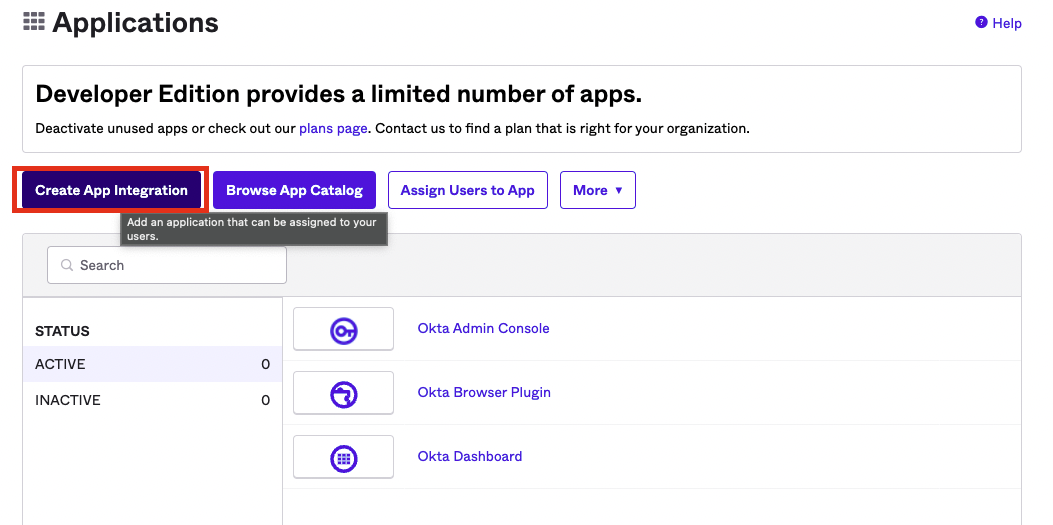
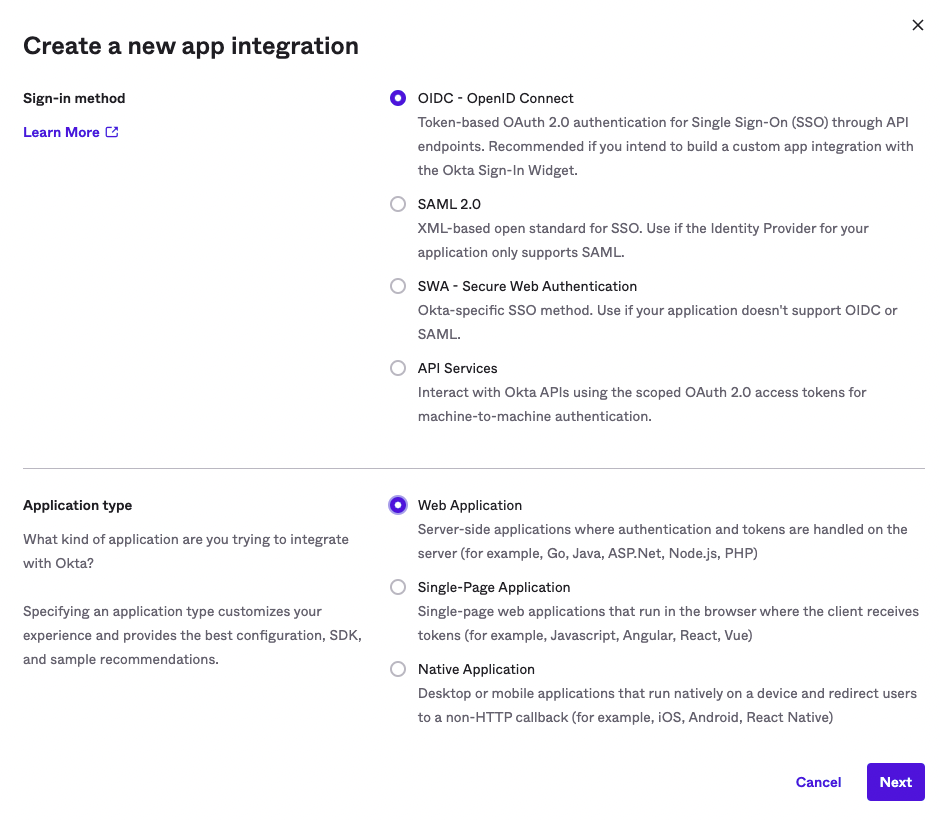
Click the "Create App Integration" button. For the sign in type, ensure you select OIDC - for the application type, select Web Application.
Okta: Configure App Integration»
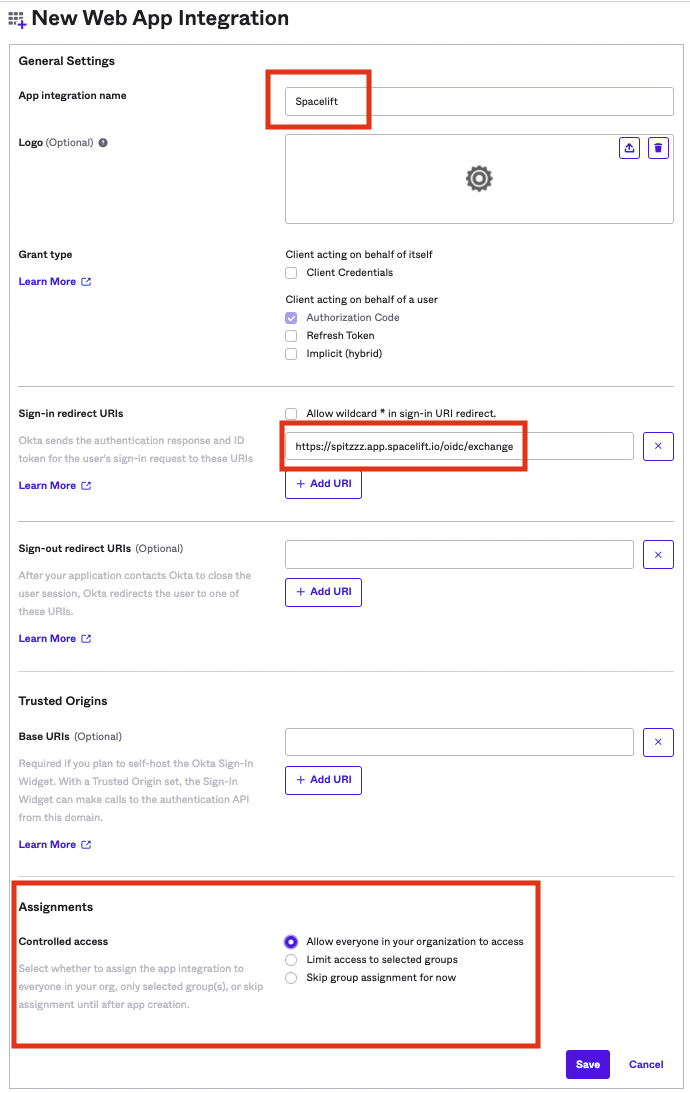
Give your app integration a name - Spacelift sounds like a good one.
Remember the authorized redirect URL we copied earlier from Spacelift? We'll need that in this step. You'll want to paste that URL into the Sign-in redirect URIs input as shown.
As far as the assignments for this app integration, that's up to you at the end of the day. This determines what users from your Okta account will be able to access Spacelift. Click Save.
Okta: Configure Group Claim»
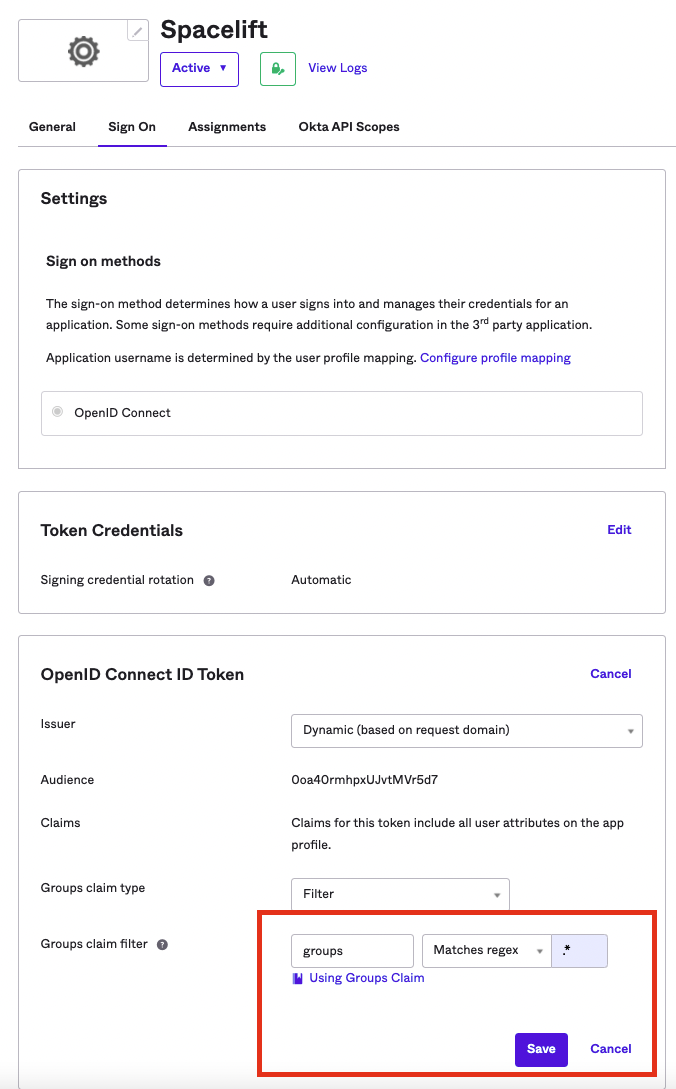
- Click the Sign On tab within your newly created Okta App Integration.
- Under Token claims, click Show legacy configuration.
- Edit the Groups claim type to return groups you consider useful in Spacelift Login Policies. For testing purposes, you could set it to Matches regex with .* for the regex value.
Configure OIDC Settings»
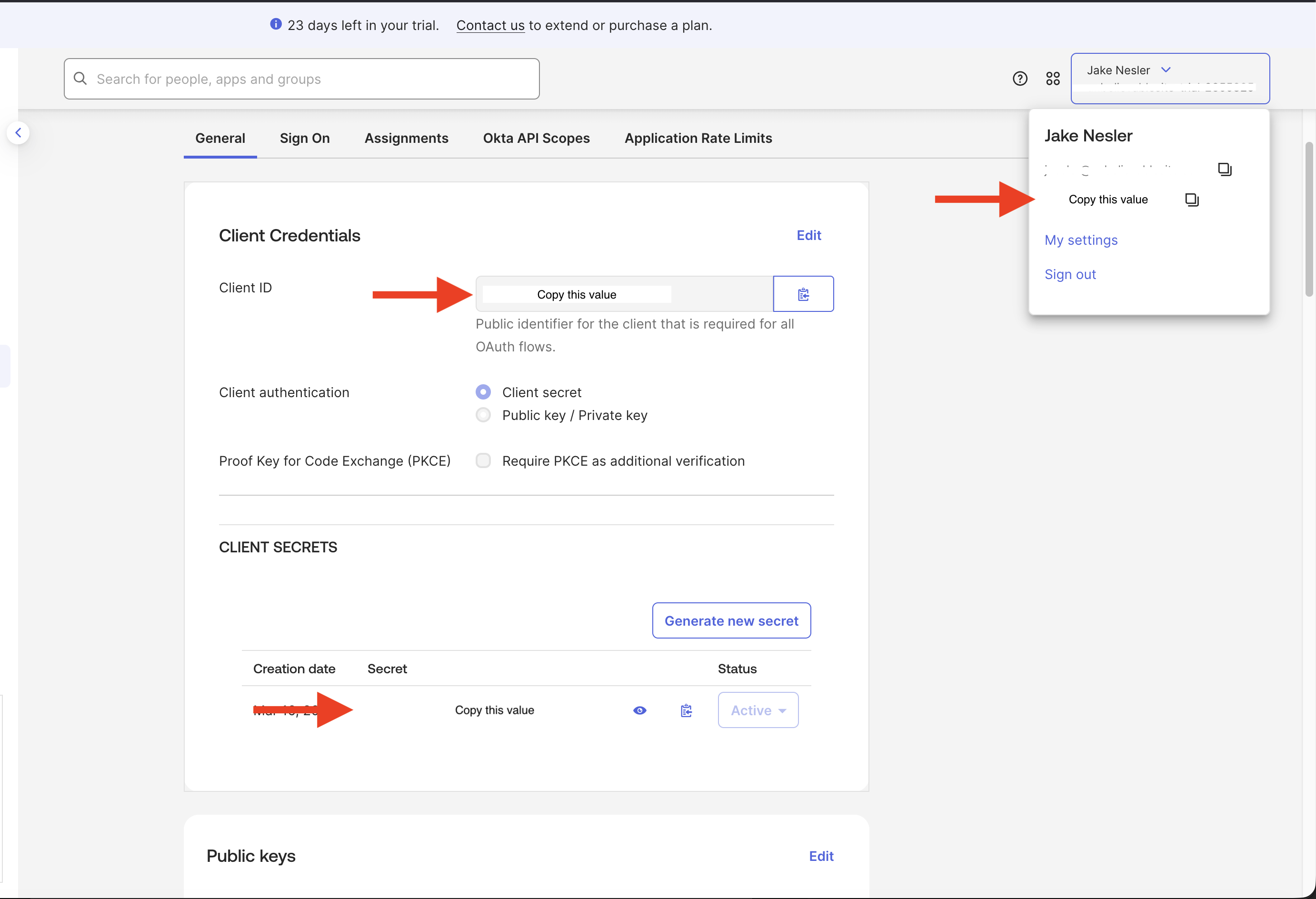
Switch back to the General tab. Now that we have the Okta App Integration setup, we'll need to take the Client ID, Client Secret, and Okta domain, to configure the Spacelift OIDC Settings.
Info
The Okta Domain will be set as the "Provider URL" in your Spacelift OIDC settings. Ensure that you prefix this URL with https://.
Okta OIDC Setup Completed»
That's it! Your OIDC integration with Okta should now be fully configured. Feel free to make any changes to your liking within your Okta App Integration configuration for the app that you just created.
Troubleshooting»
I can't add the Spacelift app in Okta»
You might need to configure User app settings.
- In Okta, navigate to Applications > Self Service.
- Under User App Requests, check all three boxes to allow users to add and configure apps.