Intent to IaC»
Once you've used Spacelift Intent to provision and manage infrastructure through natural language, you can transition to a traditional Infrastructure-as-Code workflow. The Intent to IaC feature generates OpenTofu/Terraform HCL code from your Intent project's resources and optionally creates a Spacelift stack with the generated code and imported state.
Why transition to IaC?»
- Codify stable infrastructure — Move from natural-language management to version-controlled IaC once your architecture stabilizes.
- Team collaboration — IaC workflows with pull requests and reviews scale better for teams.
- Full Spacelift features — Stacks unlock the complete Spacelift feature set: drift detection, policies, run promotion, scheduling, and more.
View HCL for a resource»
You can inspect the generated HCL for any individual resource in your Intent project.
- Navigate to your Intent project and open the Resources tab.
- Click a resource row to open the resource detail drawer.
- The drawer displays the generated HCL code for that resource.
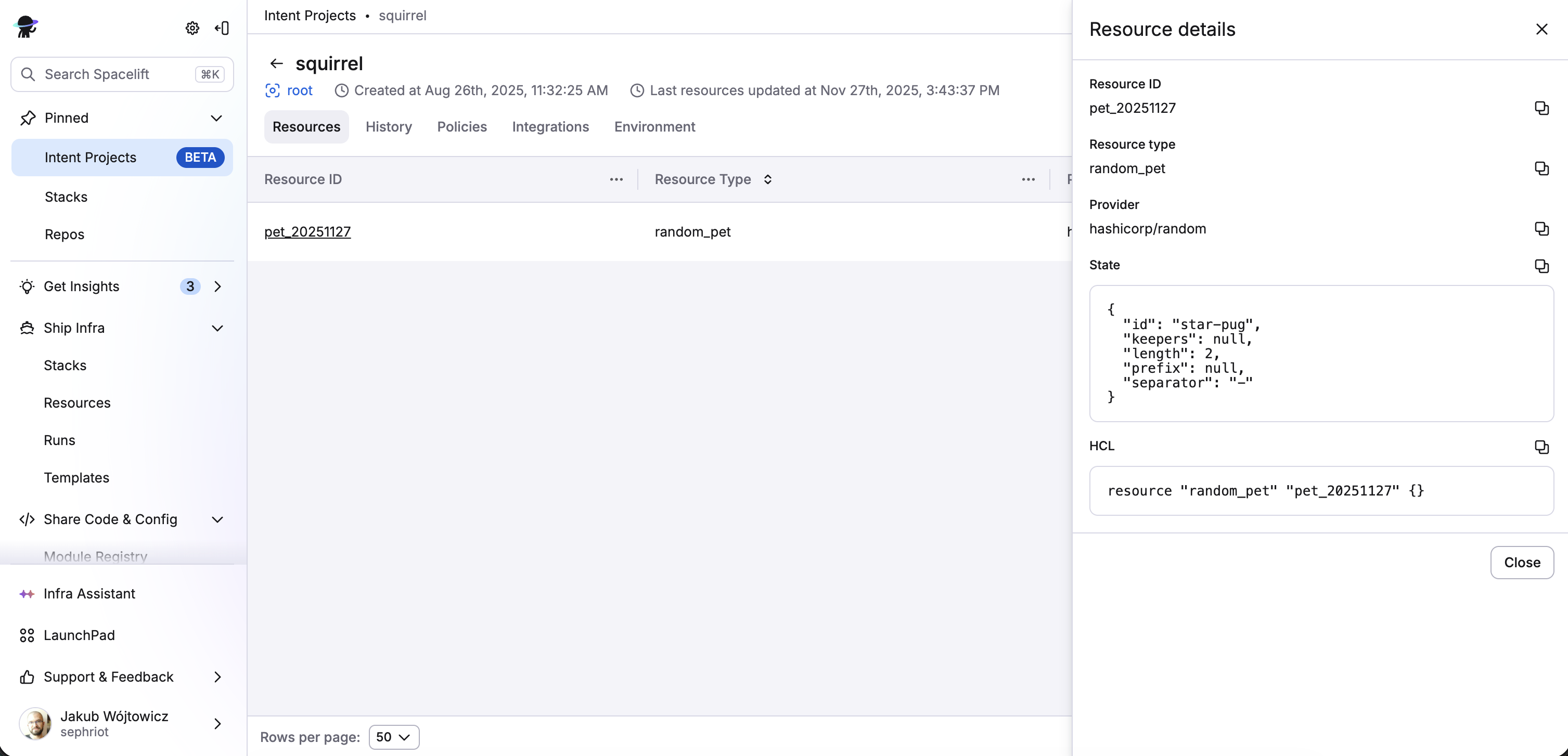
You can also retrieve HCL for a single resource via MCP:
1 | |
Download HCL for the entire project»
To download the complete HCL for all resources in your project:
- Navigate to your Intent project detail page.
- Open the dropdown menu (top-right).
- Click Download HCL file(s).
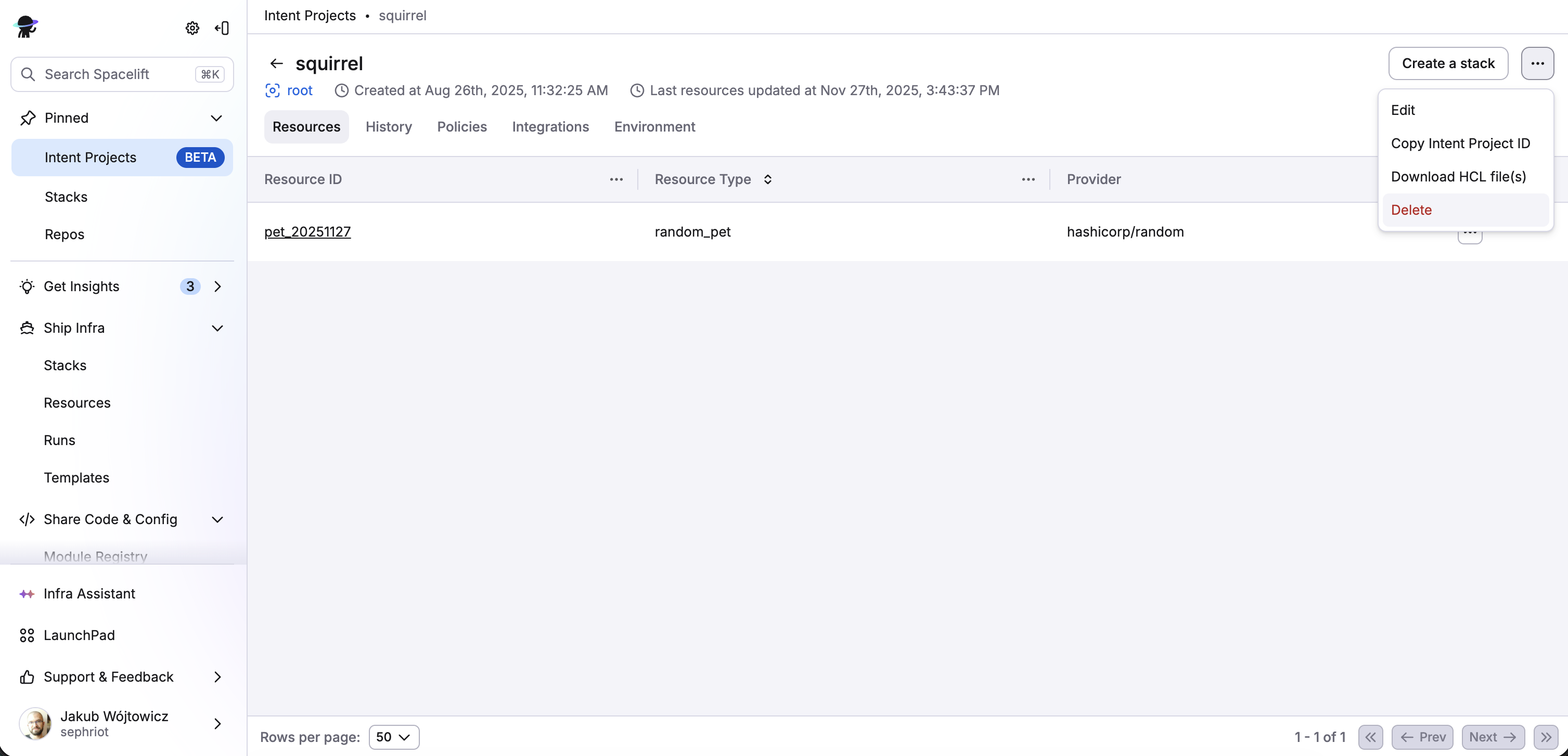
The downloaded file contains:
- A
terraformblock with all required providers and their versions. - Resource definitions for every resource in the project.
- Dependency references between resources resolved as Terraform expressions (e.g.,
aws_subnet.main.id).
You can also retrieve the full project HCL via MCP:
1 | |
Create a stack from an Intent project»
The most powerful transition path is creating a Spacelift stack directly from your Intent project. This generates HCL code, stores it in a Spacelift Repo, and optionally imports the Terraform state so your first run shows zero changes.
Via MCP»
Use your MCP client to create a stack:
1 | |
Intent will:
- Generate HCL code from all project resources (saved as
main.tofu). - Create a Spacelift Repo to store the generated code.
- Create a stack linked to that repo.
- Import the Terraform state (if requested).

Via Spacelift UI»
You can also create a stack directly from the Spacelift web interface:
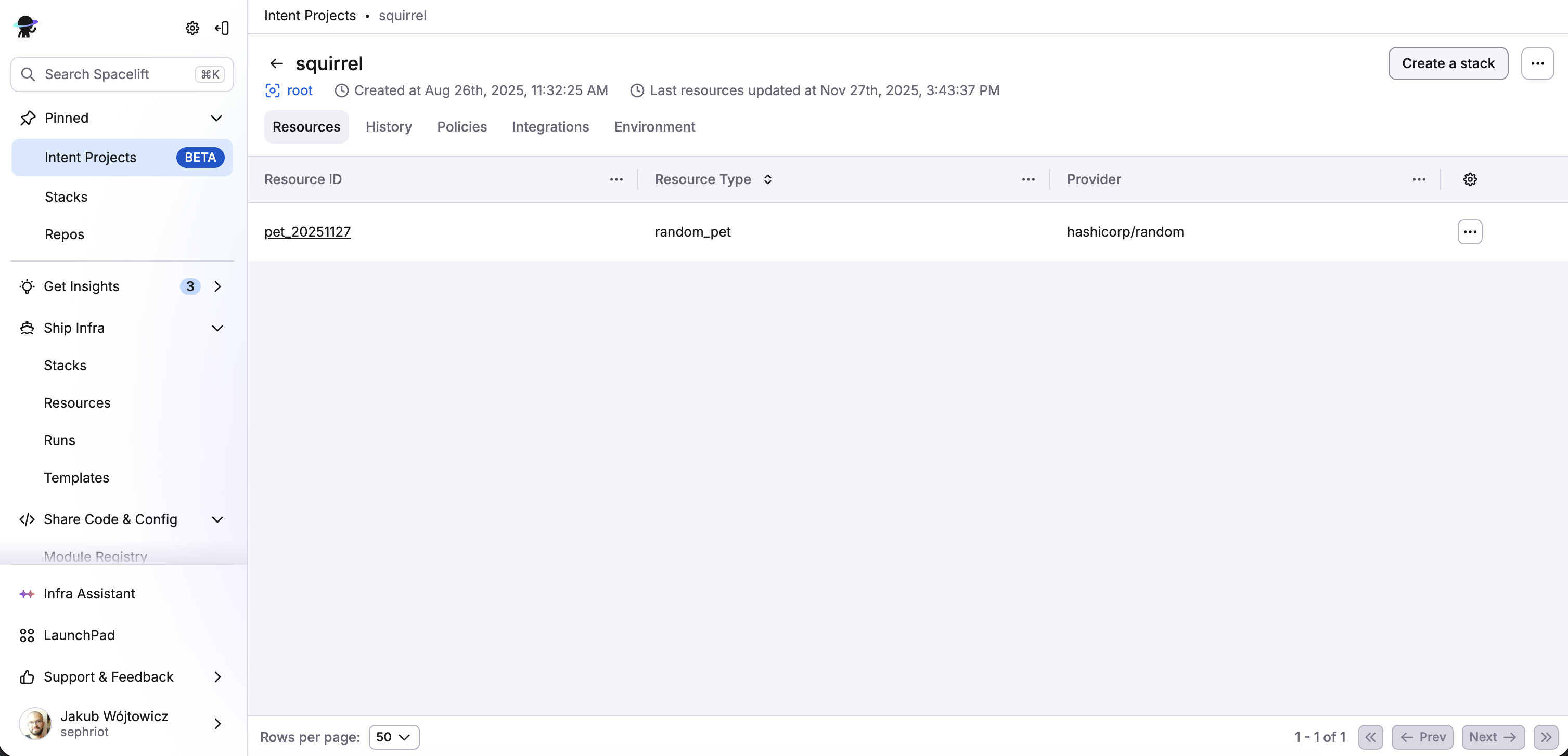
- Navigate to your Intent project detail page.
-
Click the Create a stack button in the top-right corner.
-
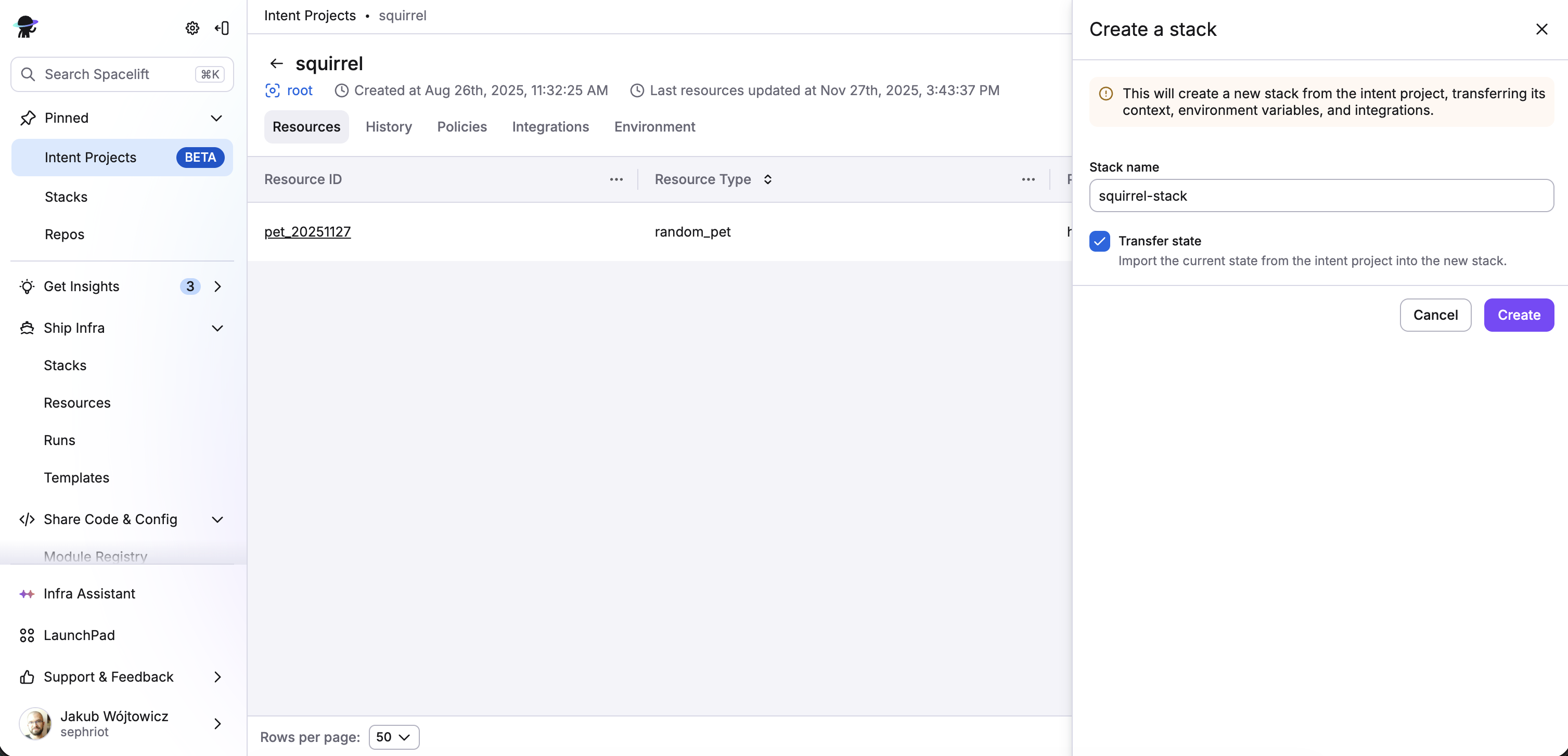
In the drawer that opens, fill in:
- Stack name — A unique name for the new stack (defaults to the Intent project name).
- Transfer state — Check this to import the current state from the Intent project into the new stack. Enabled by default.
-
Click Create. Once the stack is created, you'll be redirected to the new stack page.
Warning
Creating a stack transfers the project's context, environment variables, and integrations to the new stack.
What happens during the transition»
- HCL generation — All resources are converted to HCL with proper provider blocks and inter-resource references.
- Repo creation — A Spacelift Repo is created to store the generated
main.tofufile. - Stack creation — A new stack is created using OpenTofu as the workflow tool, linked to the generated repo.
- Environment copy — Environment variables from the Intent project are copied to the new stack.
- Integration copy — Cloud integrations (e.g., AWS) attached to the project are attached to the stack.
- State import (if enabled) — The Terraform state is uploaded and linked to the stack, so the first tracked run detects zero changes.
After the transition»
When you create a stack with state import, the Intent project transitions to a read-only state:
- You can still view resources, history, and configuration in the Intent project.
- All write operations through MCP and the GraphQL API —
create,update,delete,refresh,import,resume, and resource dependency edits — are rejected at the tool layer. - All future infrastructure changes should be made through the new stack.
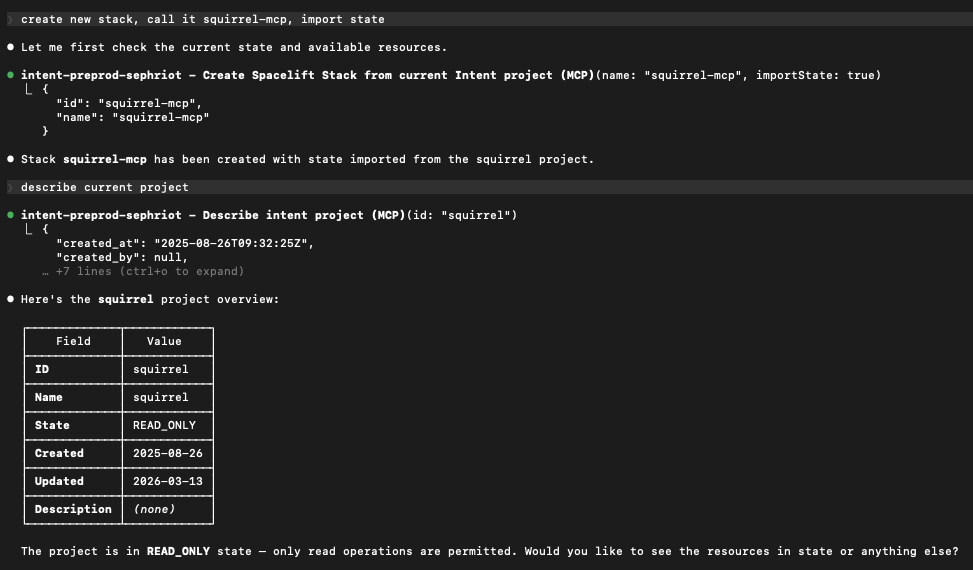
If you need to make further changes through Intent (for example to fix a botched transition), re-enable writes via the intentProjectEnable GraphQL mutation or the Enable action in the Spacelift UI. The project switches back to READ_WRITE and MCP write tools become available again.
Info
If you create a stack without importing state, the Intent project remains active and you can continue managing resources through Intent.
Verify the transition»
After creating the stack, trigger a tracked run to verify that the generated code and imported state match:
- Navigate to the new stack in Spacelift.
- Trigger a tracked run.
- The run should complete with zero changes, confirming the state was imported correctly.
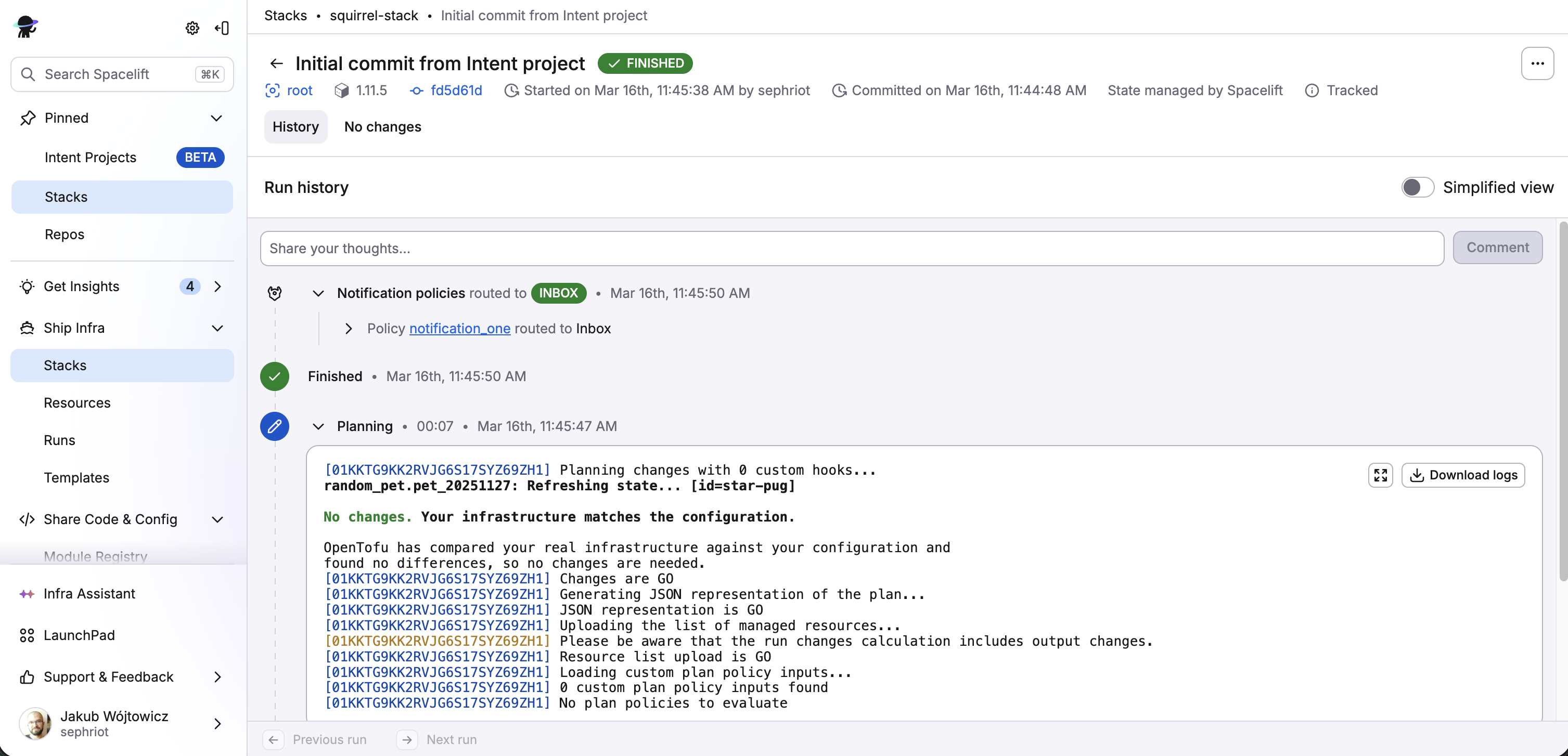
From this point, manage your infrastructure through the stack using the standard Spacelift workflow: edit the generated HCL in the Spacelift Repo (or migrate it to an external VCS), push changes, and let Spacelift handle the plan/apply cycle.