Exporting a Blueprint to a Template»
Spacelift allows you to migrate an existing Blueprint to the newer Templates format using the Export to template feature. This is useful when you want to take advantage of Templates' lifecycle management capabilities — such as version control, deterministic deployments, and enforced stack immutability — while preserving the configuration you already have in a Blueprint.
Prerequisites»
- The blueprint must be in the Published state. The export option is not available for draft blueprints.
- You must have permission to create Templates in the target space.
How to export»
- Navigate to your blueprint and open the Template body tab.
- Click the Export to template button in the top-right toolbar.
Spacelift automatically converts your blueprint's YAML into the template schema format and opens a preview modal.
Reviewing the migration»
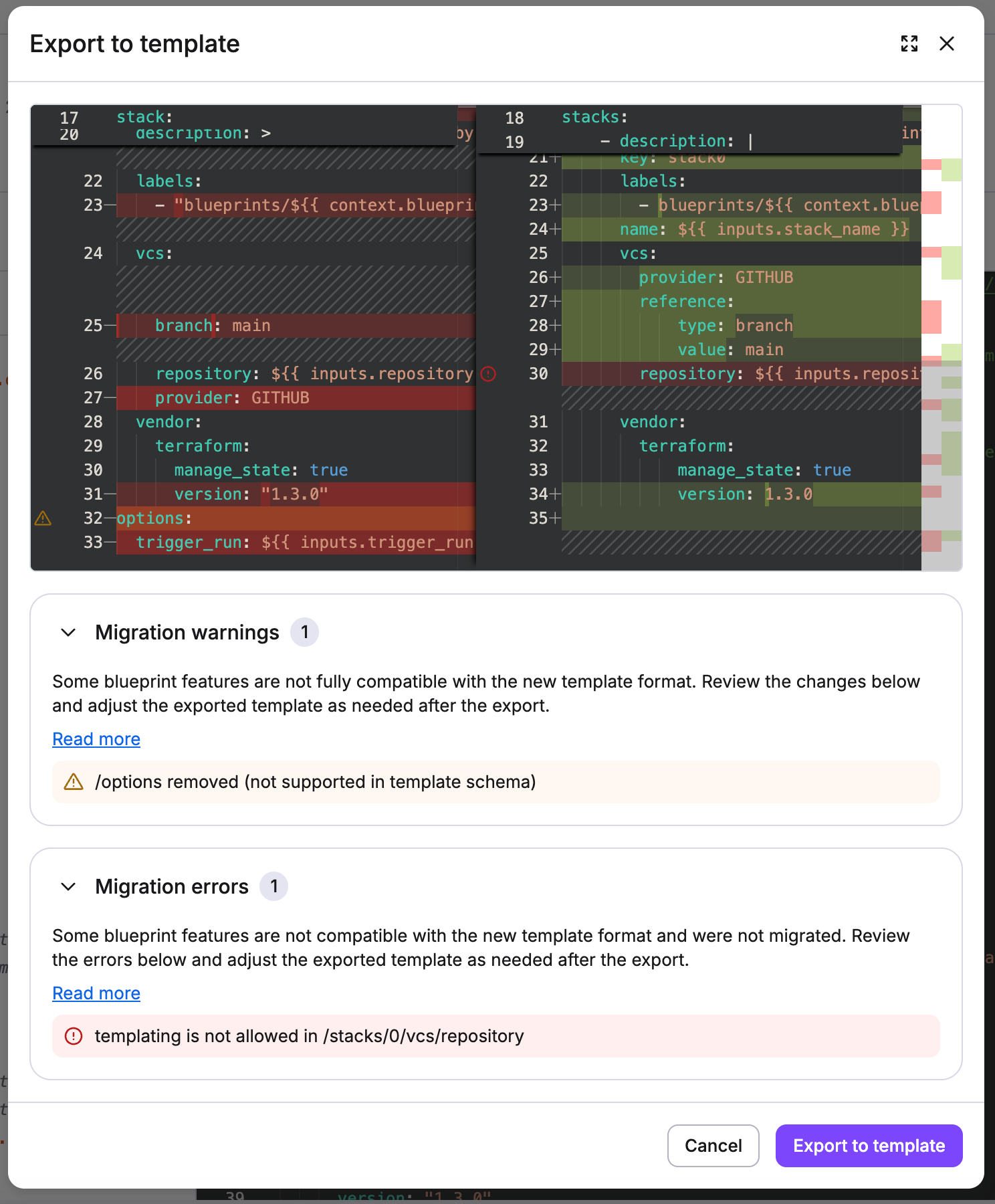
Export to template modal
The export modal shows a side-by-side diff editor with:
- Left pane — your original blueprint YAML.
- Right pane — the automatically migrated template YAML.
Before confirming the export, review any migration notices that appear below the diff editor.
Warnings»
Warnings indicate blueprint features that are partially compatible with the template schema. The migration will include these fields with a best-effort conversion, but you should review and adjust them manually after the export.
Affected lines are highlighted in the original (left) pane with a warning glyph in the margin. Hover over the glyph to read the specific message.
Errors»
Errors indicate blueprint features that are not compatible with the template schema and could not be migrated. The corresponding fields are omitted from the exported template and must be added manually after export.
Affected lines are highlighted in the migrated (right) pane with an error glyph in the margin. Hover over the glyph to read the specific message.
Tip
Use the fullscreen toggle in the modal header to expand the diff editor for a clearer view of large templates.
Completing the export»
Once you are satisfied with the preview, click Export to template. Spacelift will:
- Create a new template group using the blueprint's name, description, space, and labels.
- Create an initial version (
0.1) of that template in Draft state containing the migrated YAML. - Redirect you to the new template version page, where you can review, edit, and eventually publish it.
The original blueprint is not modified or deleted by this process.
Schema differences»
The template schema differs from the blueprint schema in several important ways. Understanding these differences helps you resolve warnings and errors that appear during migration.
For a full reference, see Template configuration — Schema key differences.
The most common changes to be aware of:
| Area | Blueprint | Template |
|---|---|---|
| Stack definition | Single stack object or array |
stacks array only; each stack requires a unique key |
| VCS reference | Direct branch, tag, or sha fields |
reference.value and reference.type (branch | tag | sha) |
| Space | Defined per stack | Top-level space field applied to the whole deployment |
| Stack limit | Up to 5 stacks | Up to 10 stacks |
| Template expressions | Allowed on most fields | Not allowed on stack keys, dependencies, or any VCS fields |
After the export»
The newly created template version starts in Draft state. Before it can be used to create deployments, you must publish it.
We recommend:
- Reviewing the migrated YAML and manually resolving any warnings or errors noted during export.
- Publishing the template version when you are confident it is correct.
See Managing template versions for details on the publish workflow.