App Installation
Installing apps in your project makes their blocks available for use in your flows. This guide covers the complete installation process.
Installation Process»
Step 1: Access the App Registry»
- Navigate to your project view
- Click Apps in navigation
- Select Registry to browse available apps
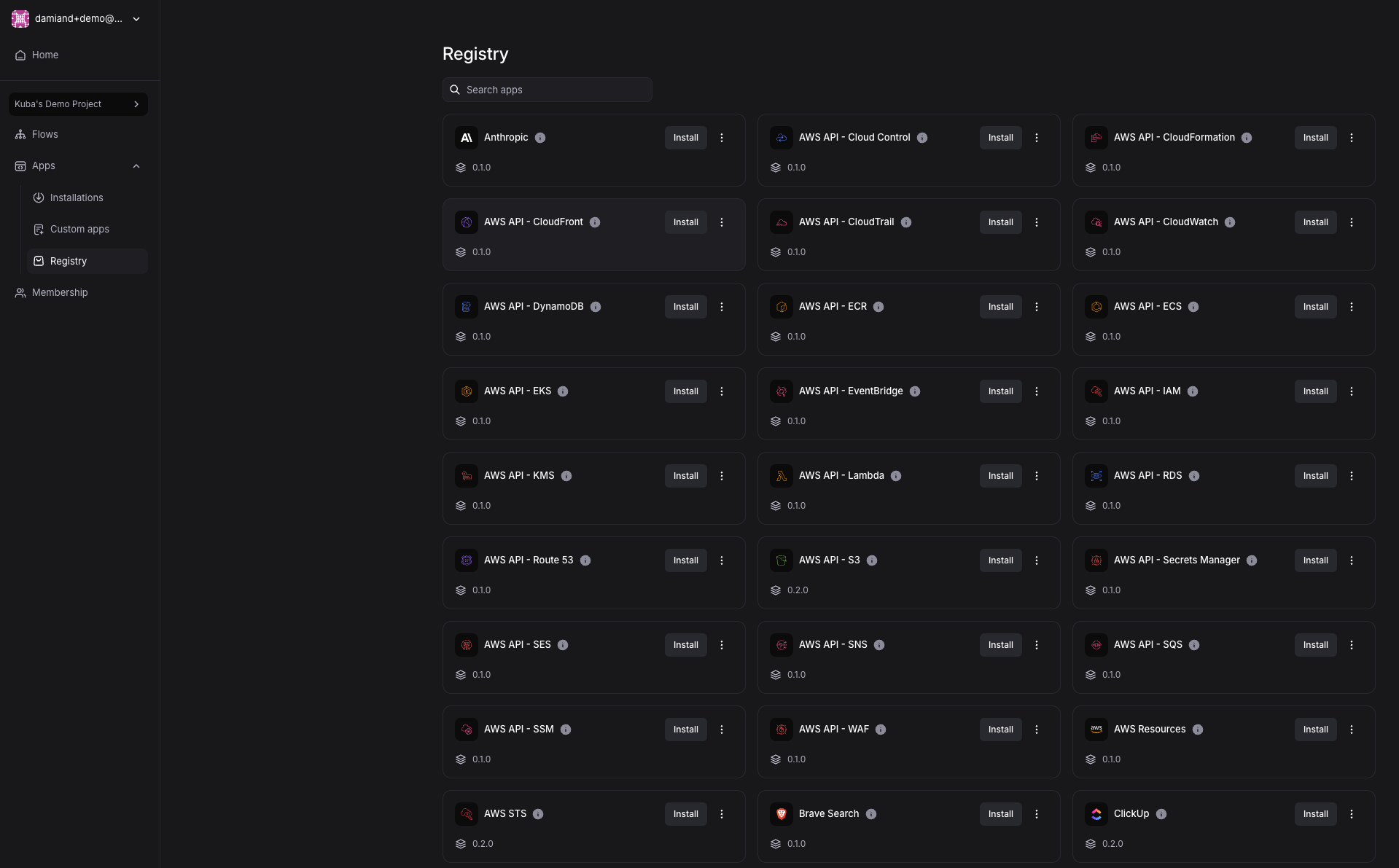
Step 2: Select Your App»
Browse available apps and click the one you want to install.
Step 3: Create the Installation»
- Click Install on the selected app
- Provide a descriptive name for this installation
- Use names indicating purpose (e.g., "AWS Production", "Slack Engineering Team")
- Helpful when having multiple installations of the same app
- Click Install in bottom right corner
App installation is created but remains in Draft state until configured.
Step 4: Configure the App»
Every app has specific configuration requirements:
- Click Config tab in your new installation
- Read configuration instructions carefully - specific to each app
- Instructions guide you through:
- Required API keys or authentication tokens
- Endpoint URLs or connection settings
- Permission requirements
- External setup needed in target service
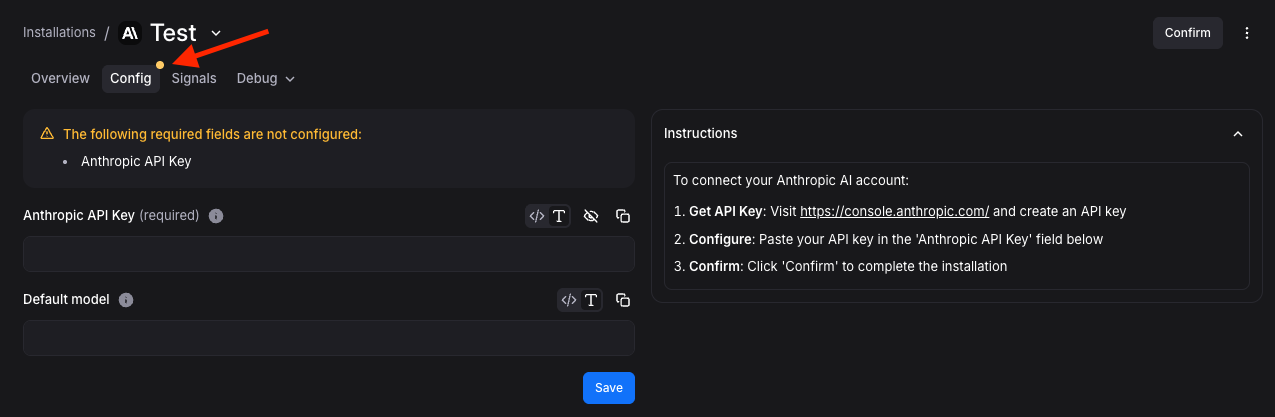
Step 5: Apply Configuration»
- Follow step-by-step instructions in Config tab
- Enter all required configuration values
- Complete external setup (like creating API keys in target service)
- Click Save to store configuration
Step 6: Confirm Installation»
- Review configuration settings for accuracy
- Click Confirm in top right to finalize installation
- App begins activation process
Step 7: Verify Installation»
- Navigate to Overview tab
- Check app state changed from Draft to Ready
- If installation failed, state changes to Failed - follow error messages for resolution
Step 8: Use in Flows»
Once app shows Ready status, blocks are available:
- Open any flow in your project
- App's blocks appear in left sidebar in 'Apps' tab
- Drag and drop onto canvas like any other block
Getting Help»
If you encounter installation issues:
- Review app's specific documentation in Config tab
- Check app's error messages for specific guidance
- Verify external service configuration and permissions
- Contact support if problems persist