AI Integrations»
AI integrations connect Infra Assistant features to LLM providers. Intent does not use them. When you connect through the Spacelift MCP server, your own AI client supplies the model and pays for the tokens.
You can either use the Spacelift-provided integration or bring your own.
Spacelift-provided»
Every Spacelift account comes with a default AI integration managed by Spacelift. Once Spacelift Intelligence is enabled, it needs no configuration.
- Provider: AWS Bedrock (Anthropic)
- Available models: Claude Sonnet 4.6, Claude Opus 4.8
- API key: Not required, managed by Spacelift
- Token budget: Depends on your plan tier. See Token budget for details.
This integration appears as Spacelift default in the Infra Assistant model selector.
Bring Your Own Model (BYOM)»
You can configure your own AI provider integrations to use your preferred LLM provider and model with your own API keys.
Supported providers and models»
Spacelift supports the following providers: Anthropic, Google, OpenAI and AWS Bedrock.
Models are automatically discovered from the provider's API using the supplied credentials. You can choose which models you want our AI Intelligence to use from the available ones. Well-known non-chat models (e.g. whisper, dall-e) are filtered out and can't be selected.
For Anthropic, Google and OpenAI you can also set a custom base url to route the integration through a self-hosted, provider-compatible gateway such as LiteLLM, or any other service that offers an API compatible with any of the major providers.
Note
BYOM integrations are billed directly by your provider. Spacelift does not impose any token limits on them.
API keys are encrypted at rest. Each integration is scoped to a Space, which controls which users can access it. You can create multiple integrations for different providers, teams, or environments.
AWS Bedrock permissions»
An AWS Bedrock integration assumes the role on your linked AWS cloud integration and calls Bedrock from Spacelift's side. That role needs permission to list inference profiles and foundation models, and to invoke models through an inference profile:
1 2 3 4 5 6 7 8 9 10 11 12 13 14 15 16 17 18 19 20 21 22 23 24 25 26 | |
Replace <AWS_ACCOUNT_ID> with the account that owns the inference profiles. The invoke actions are granted on both the inference-profile ARNs and the underlying foundation-model ARNs on purpose: invoking through a cross-region inference profile requires access to the foundation models in every region the profile routes to, and the region wildcard covers that. The two List* actions sit in their own Resource: "*" statement because they don't support resource-level scoping in IAM; scoping them to an ARN would leave them ungranted and break profile discovery.
Note
If setting up the integration succeeds but chats fail with an access-denied error, the usual cause is a missing invoke permission (bedrock:InvokeModelWithResponseStream) on the foundation-model ARNs. Spacelift can list and validate models with read-only access, but generating a reply needs the invoke action, so the two can fail independently.
Managing integrations»
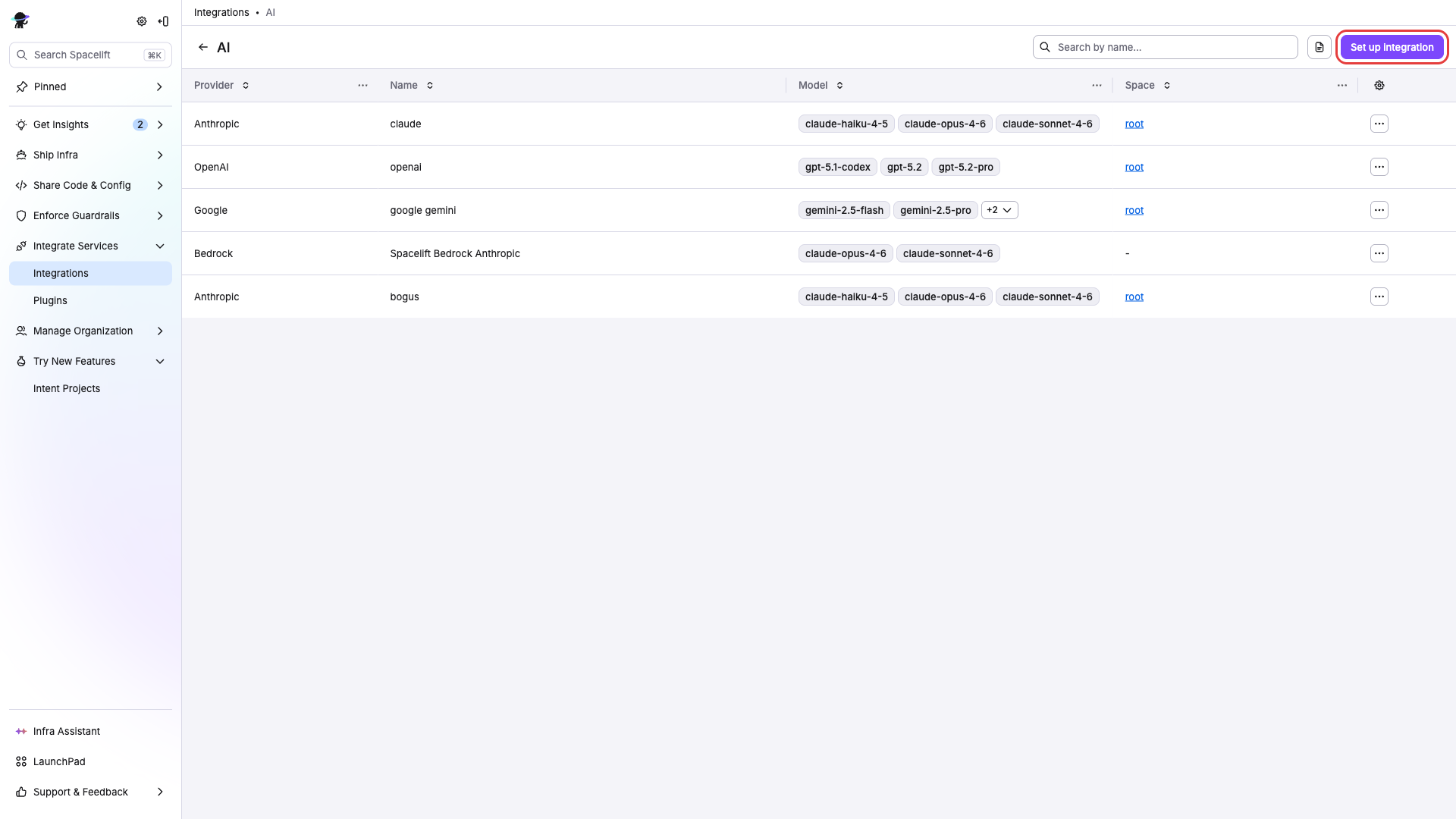
Go to Settings > Integrations > AI to manage your AI integrations.
Creating an integration»
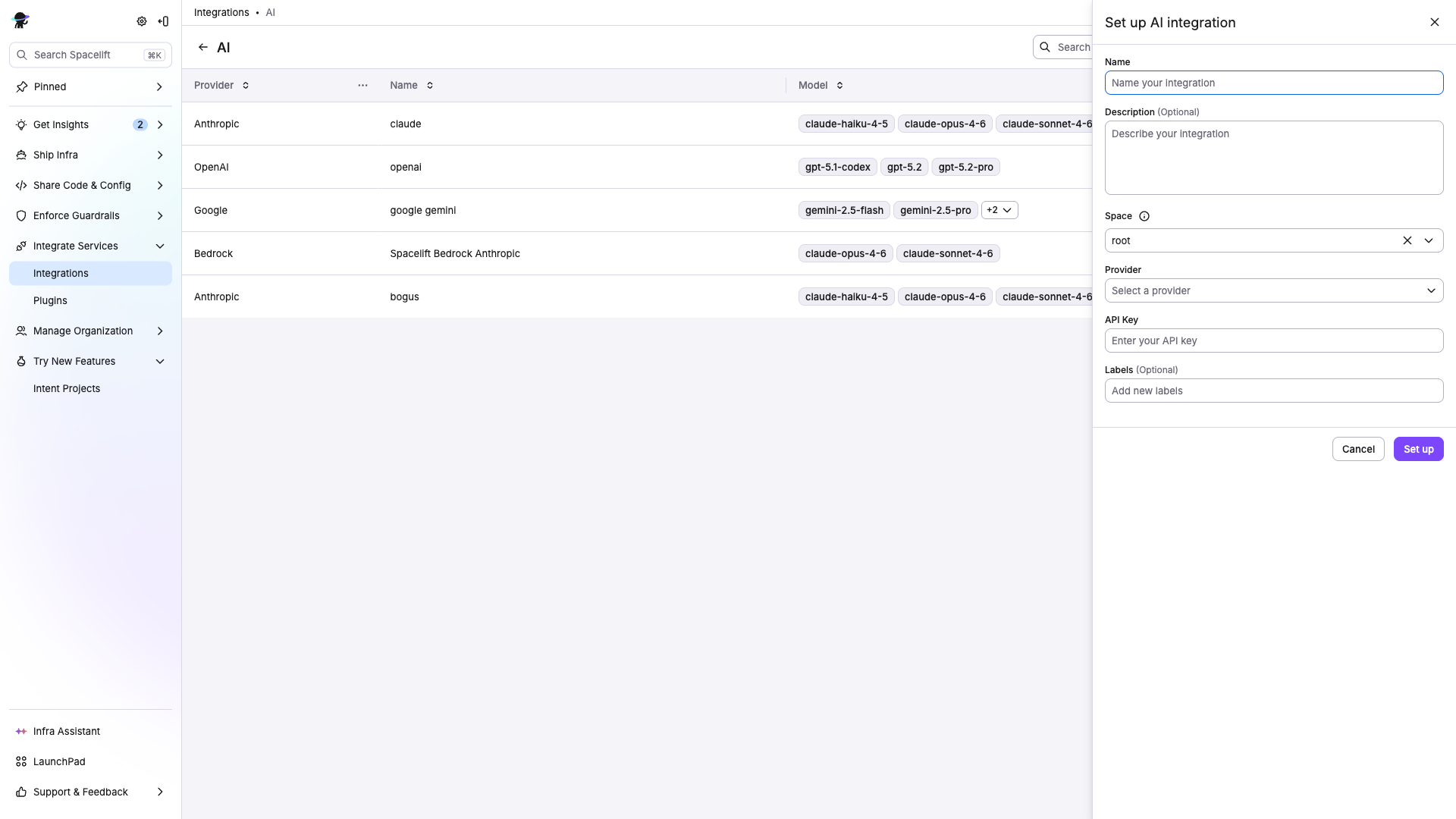
- Click Set up integration.
- Enter a Name for the integration.
- Optionally add a Description.
- Select a Space to scope the integration to.
- Select a Provider (Anthropic, OpenAI, Google, or AWS Bedrock).
- Provide credentials for the selected provider:
- Anthropic / OpenAI / Google: paste your API key from the provider.
- AWS Bedrock: choose an existing AWS cloud integration and an AWS region, then pick from the inference profiles Spacelift discovers in that account and region. The AWS integration must not have Assume role on worker enabled, because Spacelift assumes its role on its own end to reach Bedrock. Spacelift validates the profiles at save time.
- Optionally specify a custom Base URL. Only
httpsURLs are supported.- At save time, Spacelift validates the gateway by checking that the endpoint accepts the API key and issuing a test completion against each selected model. If any model is not reachable, the save fails with an error message listing the failing model(s).
- Select the Models the integration can use. For Anthropic, OpenAI, and Google, Spacelift fetches the available models from the provider API. For AWS Bedrock, the inference profiles chosen in the previous step serve as the model list.
- Optionally add Labels for organization.
- Click Set up.
Tip
You can find API keys from your provider's dashboard:
Editing an integration»
Open an integration from the list to update its name, description, labels, API key, or space assignment. Editing requires the Update AI integration permission (or the Space admin role) in the integration's Space.
To change the model selection, re-enter the API key: so Spacelift can fetch the live model list from the provider. The stored key is never displayed. Changing the API key, base URL, or model list re-triggers the save-time validation.
Note
The Spacelift-provided integration is managed by Spacelift and cannot be edited. You can only enable or disable it (see below).
Enabling and disabling an integration»
You can turn an integration off without deleting it. A disabled integration keeps its configuration but cannot be used: Infra Assistant rejects any request routed to it until you re-enable it. Toggle an integration from its actions menu in the list, or select several integrations to enable or disable them in bulk.
Enabling or disabling an integration requires the Toggle AI integration permission (or the Space admin role). For a Space-scoped integration this is checked in the integration's Space. See RBAC actions.
Because the Spacelift-provided integration has no Space, enabling or disabling it is authorized on your root space.
Deleting an integration»
Select Delete from the actions menu. Conversations that were using the deleted integration will need a new integration selected to continue.
Selecting an integration in Infra Assistant»
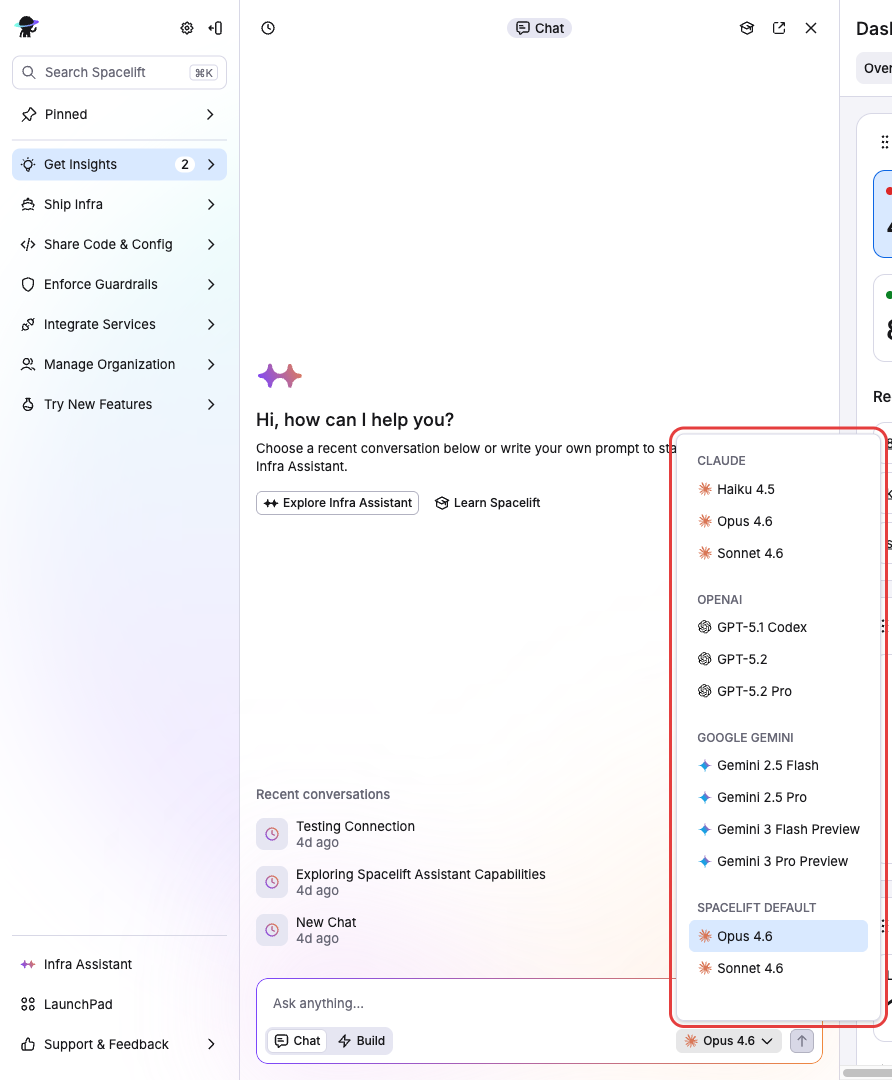
In the Infra Assistant chat, use the model selector to pick which integration and model to use.
The dropdown shows Spacelift default (the Spacelift-provided Bedrock integration) along with any BYOM integrations you have access to through your Space membership.
You can switch integrations at any time during a conversation. When switching between providers, the conversation history is automatically adapted for compatibility with the new model.
For details on data handling and provider responsibilities, see the AI Terms of Use.